UE Sheet
The Google Sheet is the foundation of your Ultimate Envelopes budget. It’s a template you copy into your own Google Drive — you own it completely, and it never expires.
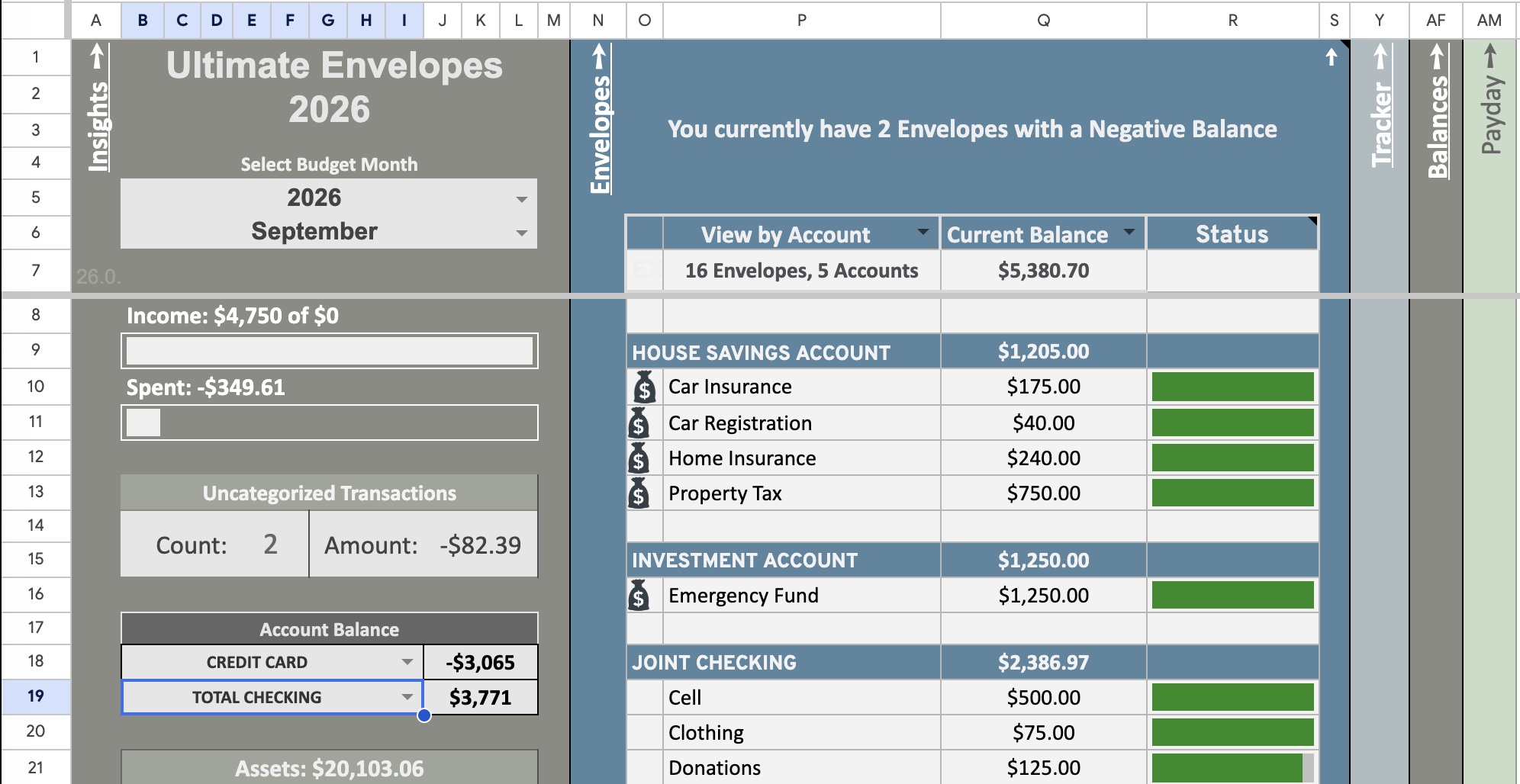
Requirements
- A Google account (free)
- Google Sheets (free, included with Google account)
- Optional: A Tiller Money subscription for automatic transaction import
What’s Inside
Envelopes Tab
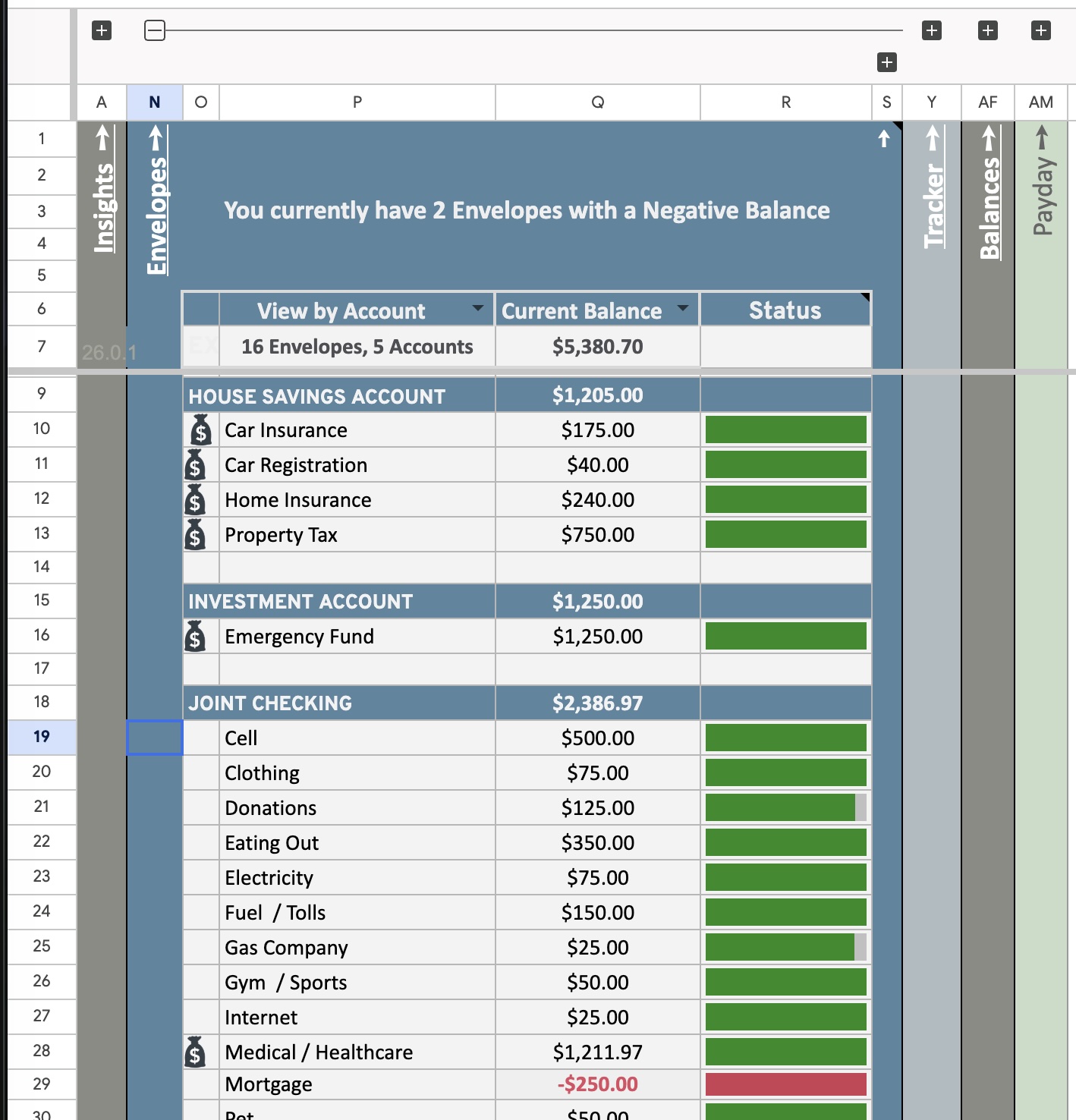
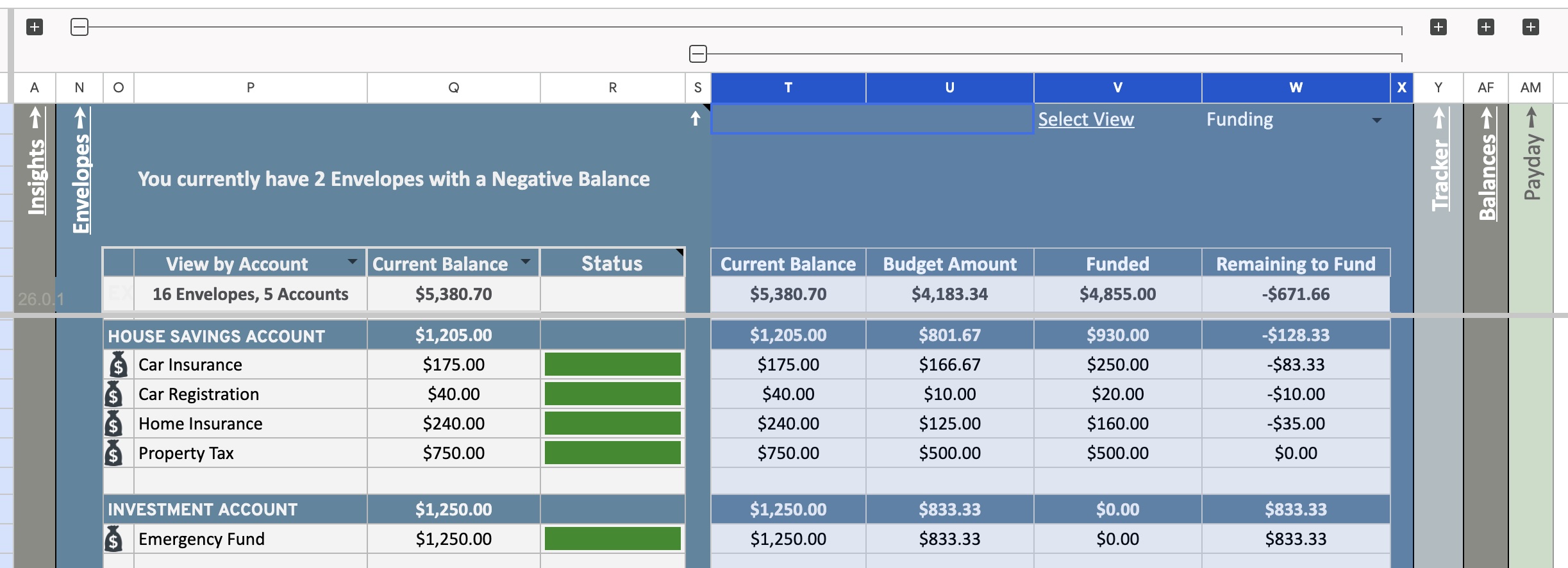
The heart of your budget. Create envelopes for every spending category — Groceries, Rent, Subscriptions, Emergency Fund, etc. — and assign a budget amount to each.
- View envelopes by Account or by groups (Annual, Monthly, Investments, etc.)
- Color-coded status bars show how healthy each envelope is at a glance
- Overdrawn envelopes are highlighted in red so nothing slips by
Tracker Tab
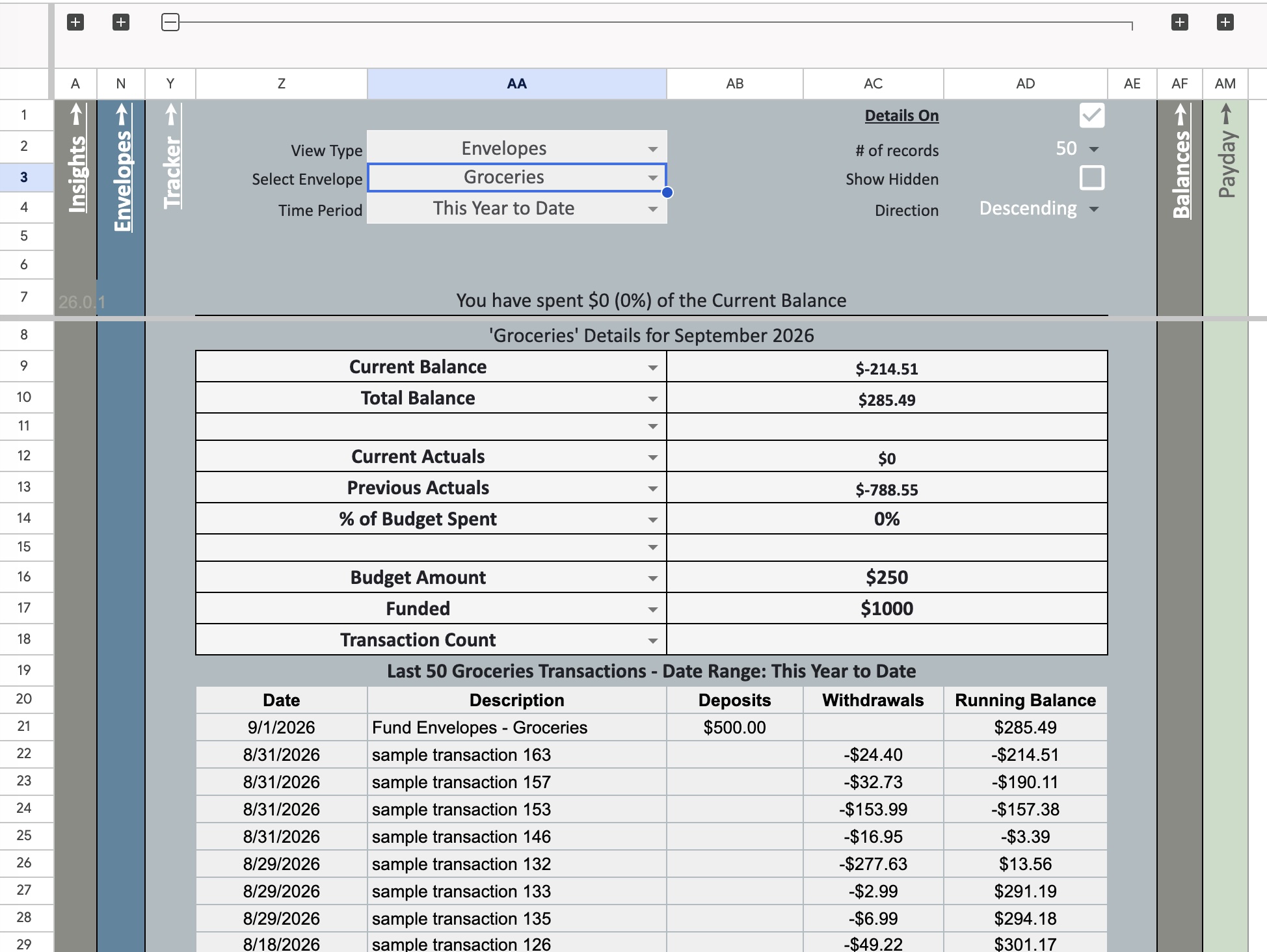
Drill into any envelope for a full spending breakdown. The Tracker shows current balance, total actuals, % of budget spent, funded amount, and a complete transaction history.
Balances Tab
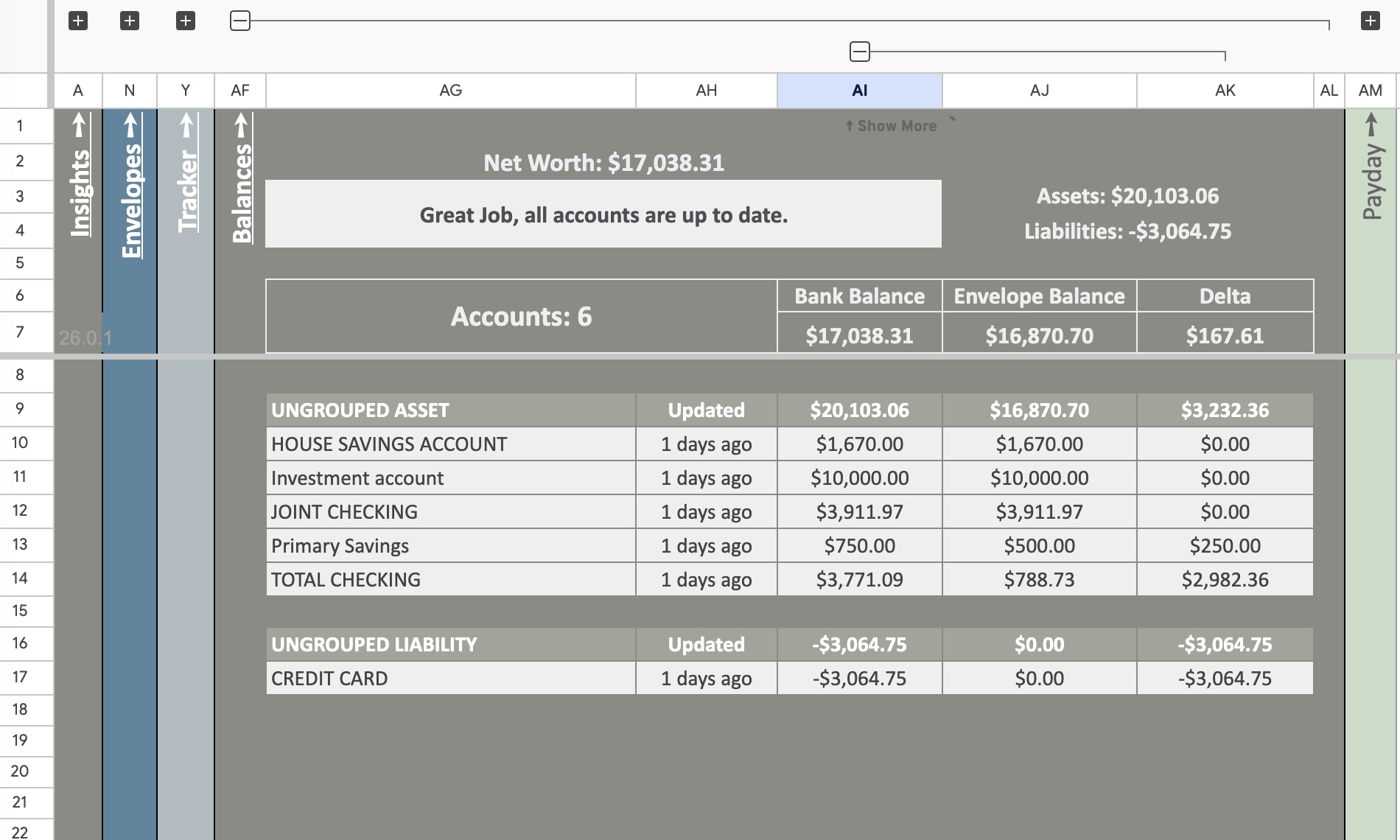
A live snapshot of all your accounts — checking, savings, credit cards, investments — and your overall net worth.
- Net worth calculated from all linked accounts
- See Bank Balance, Envelope Balance, and Delta side by side
- Accounts grouped by type (Spending, Savings, Investments)
- Alerts when accounts haven’t been updated recently
Payday Tab
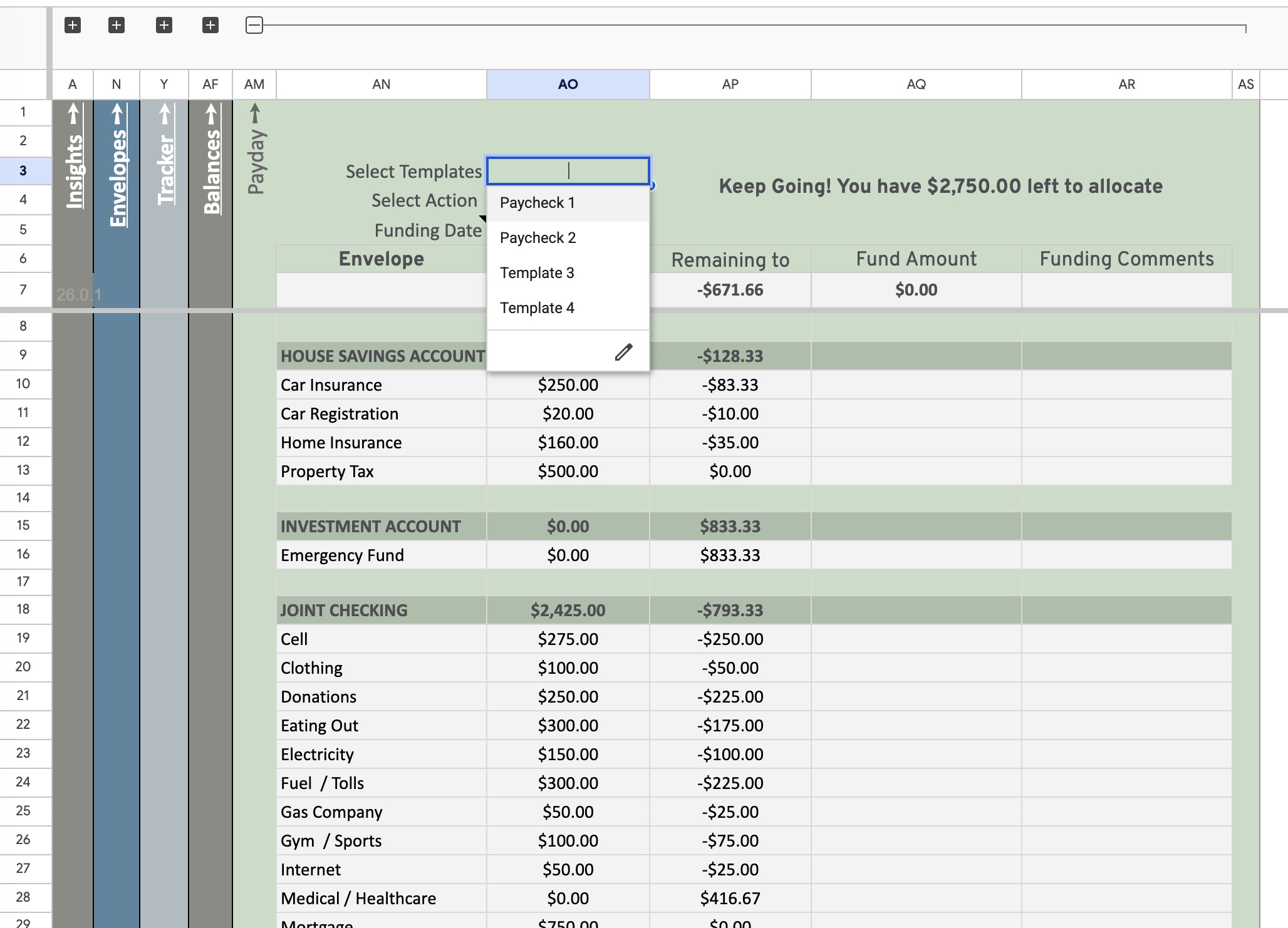
A structured workflow for funding your envelopes when you get paid. Choose a funding template, set the date, and work through each envelope until everything is covered.
- Funding templates for each paycheck (Paycheck 1, Paycheck 2, etc.)
- See exactly how much is remaining to allocate as you fund each envelope
- Warning shown if you over-fill your envelopes
- Envelopes organized by group with fund amounts and optional comments
Startup Wizard
The first time you open your copy of the sheet, the Startup Wizard walks you through getting set up — start fresh, upgrade from a previous sheet, migrate from Tiller, or load sample data.
Screenshots
Videos
Getting Started Walkthrough
A walkthrough of the initial setup — copying the sheet, choosing UE or Tiller version, and opening the companion app for the first time.
Envelope Balances
A look at the Envelopes tab — envelope groups, color-coded status bars, and checking balances at a glance.
Account Balances Overview
A look at the Balances tab — tracking accounts, net worth, and how balances tie back to your envelopes.
Using Tracker
A practical, day-to-day walkthrough of working in the Tracker tab.
Exploring Envelope Insights
A deeper look at the Tracker tab — drilling into an envelope’s balance, spending, and full transaction history.
Payday Funding Workflow
How to use the Payday tab to allocate your income to envelopes each pay period.
Purchase & Setup
- Purchase on Gumroad
- Open the Google Sheet link from your purchase confirmation
- Go to File → Make a copy to save it to your own Drive
- Follow the Getting Started guide to authorize the script (one-time only), then create your envelopes and start budgeting
See the Startup Wizard guide for the options you’ll see next.