Getting Started
The first time you open your copy, a Read Me First sheet walks you through a one-time script authorization. You must complete this before the Startup Wizard will run.
Step 1: Authorize the Script to Run (One-Time Only)
You must perform the following steps for Ultimate Envelopes to work properly.
Step 2: Open Apps Script
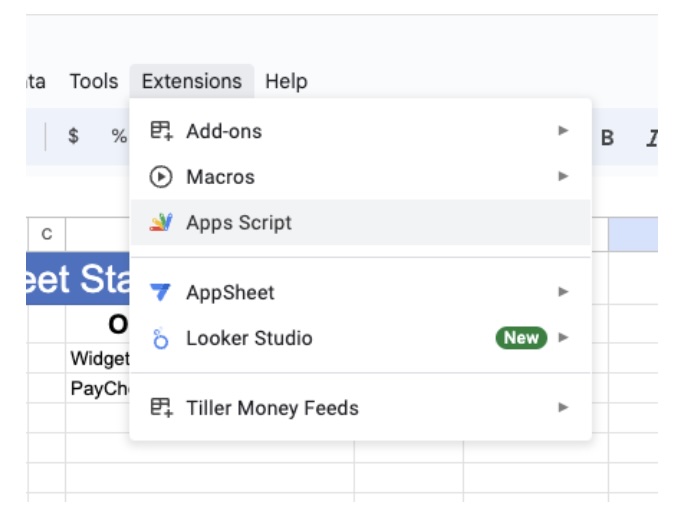
Open the Extensions → Apps Script menu to enter the script editor, then select the top file named RunFirst.gs.
Step 3: Run the “runFirst” Function
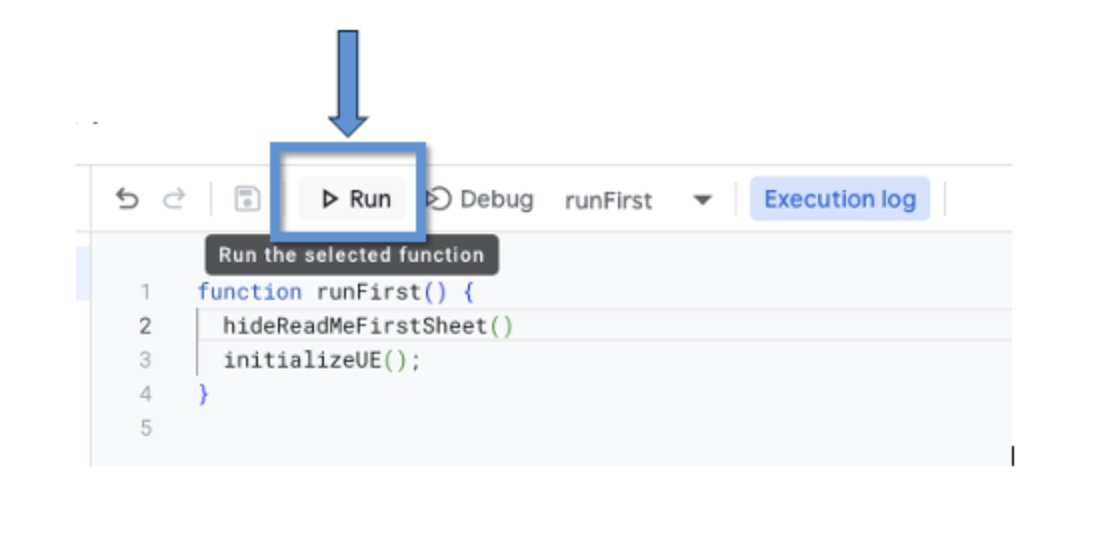
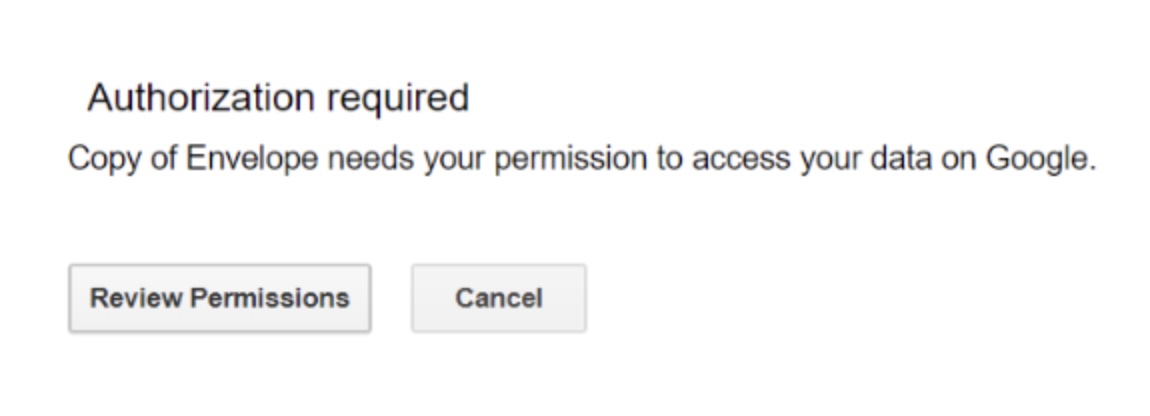
Step 4: Authorize the Script to Run
You’ll see the following prompt.
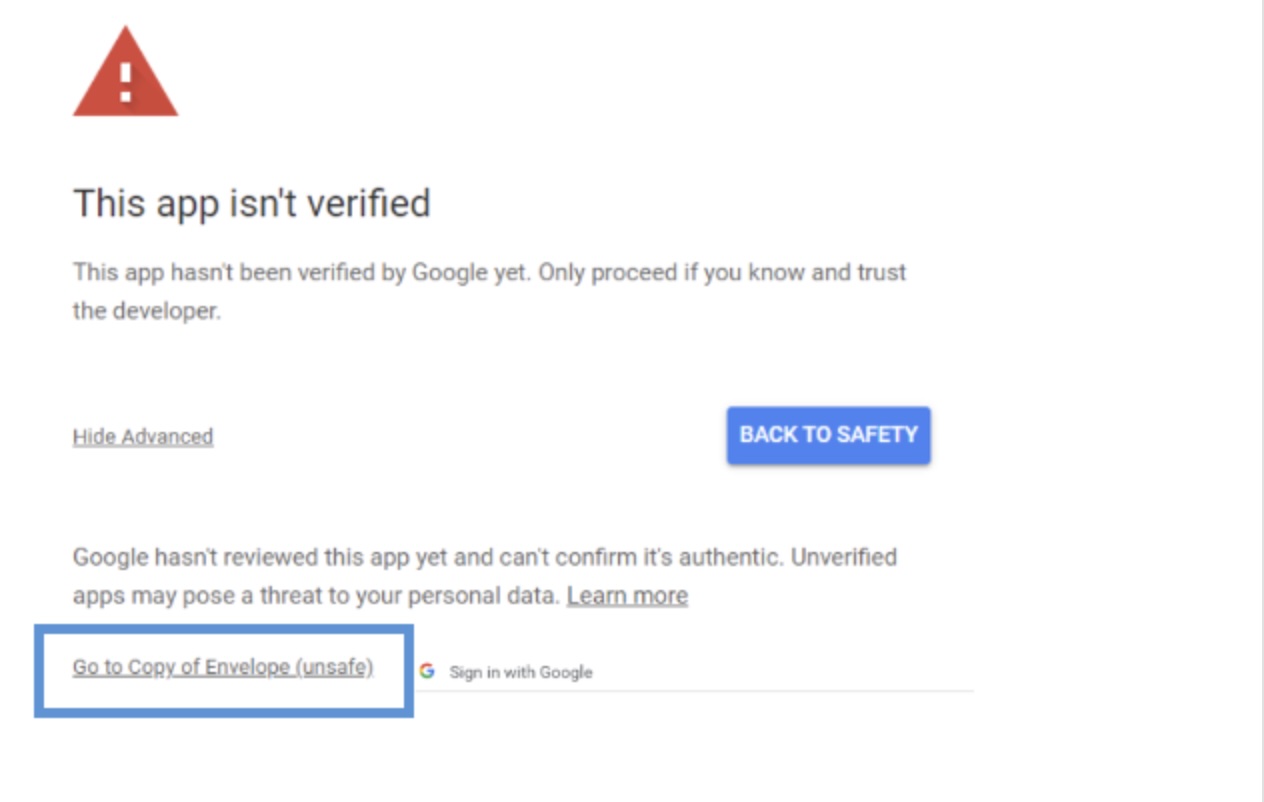
Step 5: Click the Link at the Bottom of the Pop-Up
It says “unsafe,” but it’s safe — this warning appears because the script isn’t published on the Google Marketplace, not because of any actual risk.
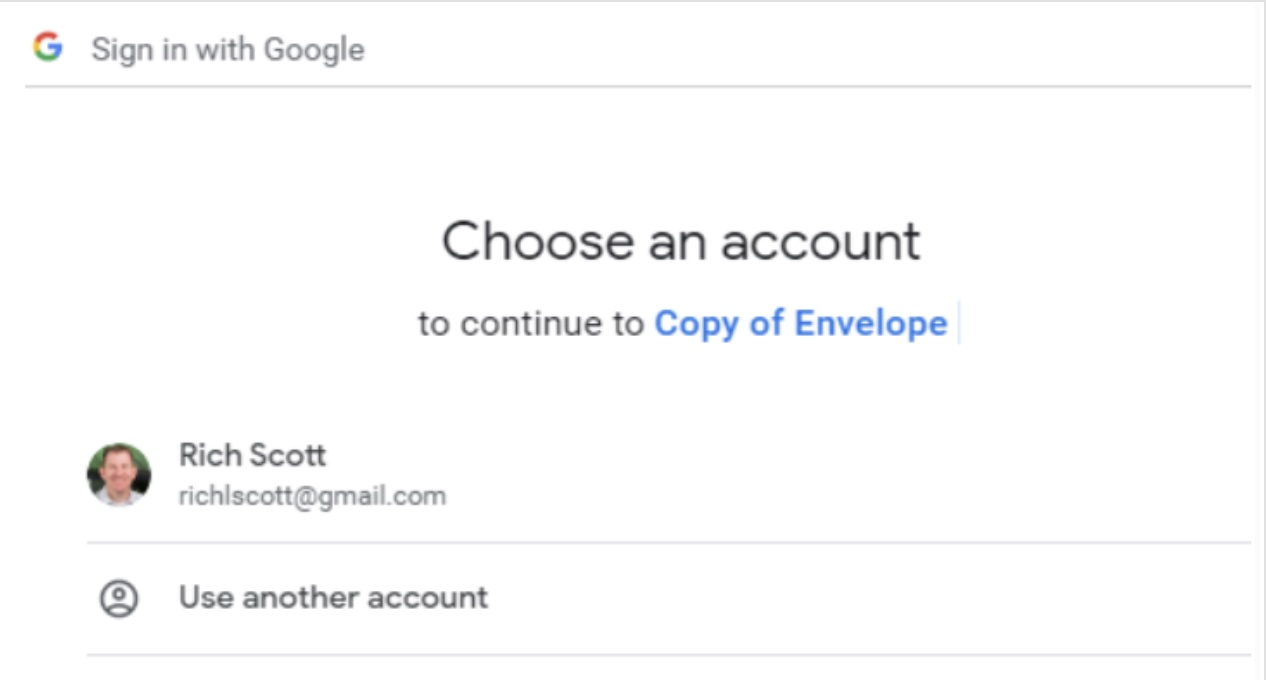
Step 6: Choose the Account You Want to Authorize
Then click Authorize.
Step 7: After the Script Is Done Running
Refresh your sheet and the Startup Wizard will run.
Note: After the script runs, it will hide this Read Me First sheet.