Startup Wizard
Migrate with ease. The first time you open your copy of the sheet, the Startup Wizard walks you through getting set up. Pick the option that matches where you’re starting from. Each one is explained below.
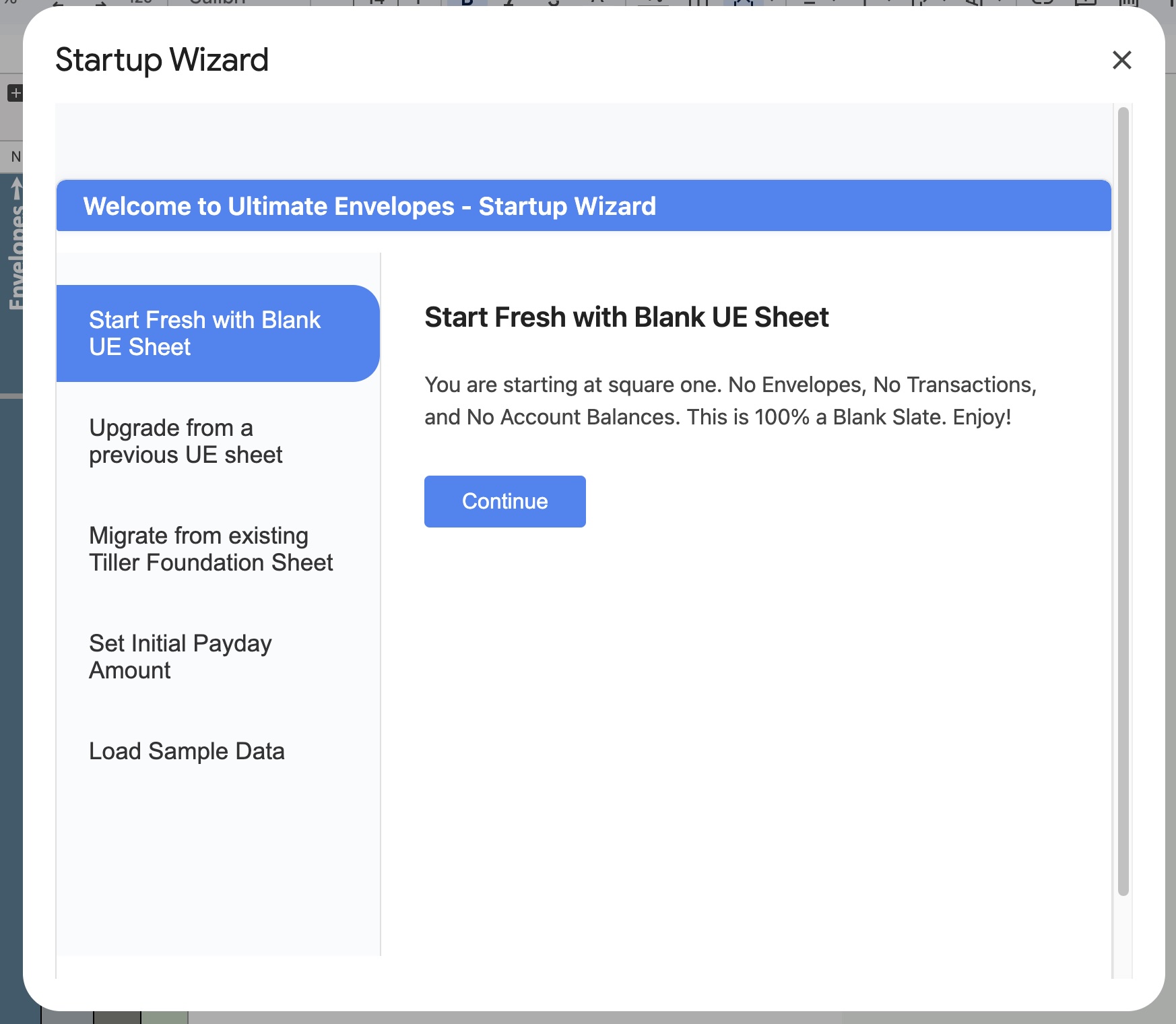
| If you… | Choose |
|---|---|
| Are new to UE and want an empty sheet | Start Fresh |
| Used an earlier version of UE | Upgrade from a Previous UE Sheet |
| Use the Tiller Foundation Template today | Migrate from Tiller Foundation Sheet |
| Need your envelopes to match what’s in your bank today | Set Initial Payday Amount |
| Want to try UE before entering your own numbers | Load Sample Data |
Need the wizard again later? Open it any time from Extensions → Ultimate Envelopes → Setup Tools → Run Setup Wizard.
Start Fresh with Blank UE Sheet
A 100% blank slate: no envelopes, no transactions, and no account balances.
- Select Start Fresh with Blank UE Sheet, then click Continue.
- Click Start Fresh.
Then follow the next steps the wizard shows:
- Install Tiller Money Feeds (optional) to bring in your bank transactions automatically. You can also enter or import transactions yourself.
- Create your categories. These are your envelopes.
- Categorize your transactions.
- Fund your envelopes.
Upgrade from a Previous UE Sheet
Bring your envelopes and history forward from an earlier Ultimate Envelopes sheet. Your old sheet isn’t changed. The wizard only copies from it.
This happens in two phases.
Phase 1: Sync Tiller first
Connect your new sheet to Tiller and fill it before importing. This prevents duplicate transactions.
- Install Tiller Money Feeds if you haven’t already.
- Open Extensions → Tiller Money Feeds and link your accounts to this new sheet.
- Use Tiller’s Fill option to pull in your latest transactions.
- Back in the wizard, click Phase 1 Complete — Continue to Migration.
Phase 2: Import your data
- Paste the URL (or ID) of your previous UE sheet.
- Choose which sheets to bring over. All are selected by default:
- Categories
- Transactions
- Funding Transactions
- Balance History
- Accounts
- Leave Archive existing sheets before migrating checked. It saves hidden backup copies of the new sheet’s tabs before they’re overwritten.
- Click Migrate Data and wait for every step to finish.
Migrate from Existing Tiller Foundation Sheet
Switching from the Tiller Foundation Template? This copies your data into UE. Your Tiller sheet isn’t changed.
- Paste the URL (or ID) of your Tiller Foundation sheet.
- Click Migrate Data.
The wizard copies these sheets:
- Categories
- Transactions
- Balance History
- Accounts
Set Initial Payday Amount
Gives your envelopes a starting balance that matches what’s in your bank today. Do it once, after your transactions are categorized and before you fund your envelopes for the first time.
See Setting Your Starting Balance for the full walkthrough: what to do first, each step in the wizard, and what it adds to your sheet.
Load Sample Data
Explore Ultimate Envelopes with realistic example data before entering your own.
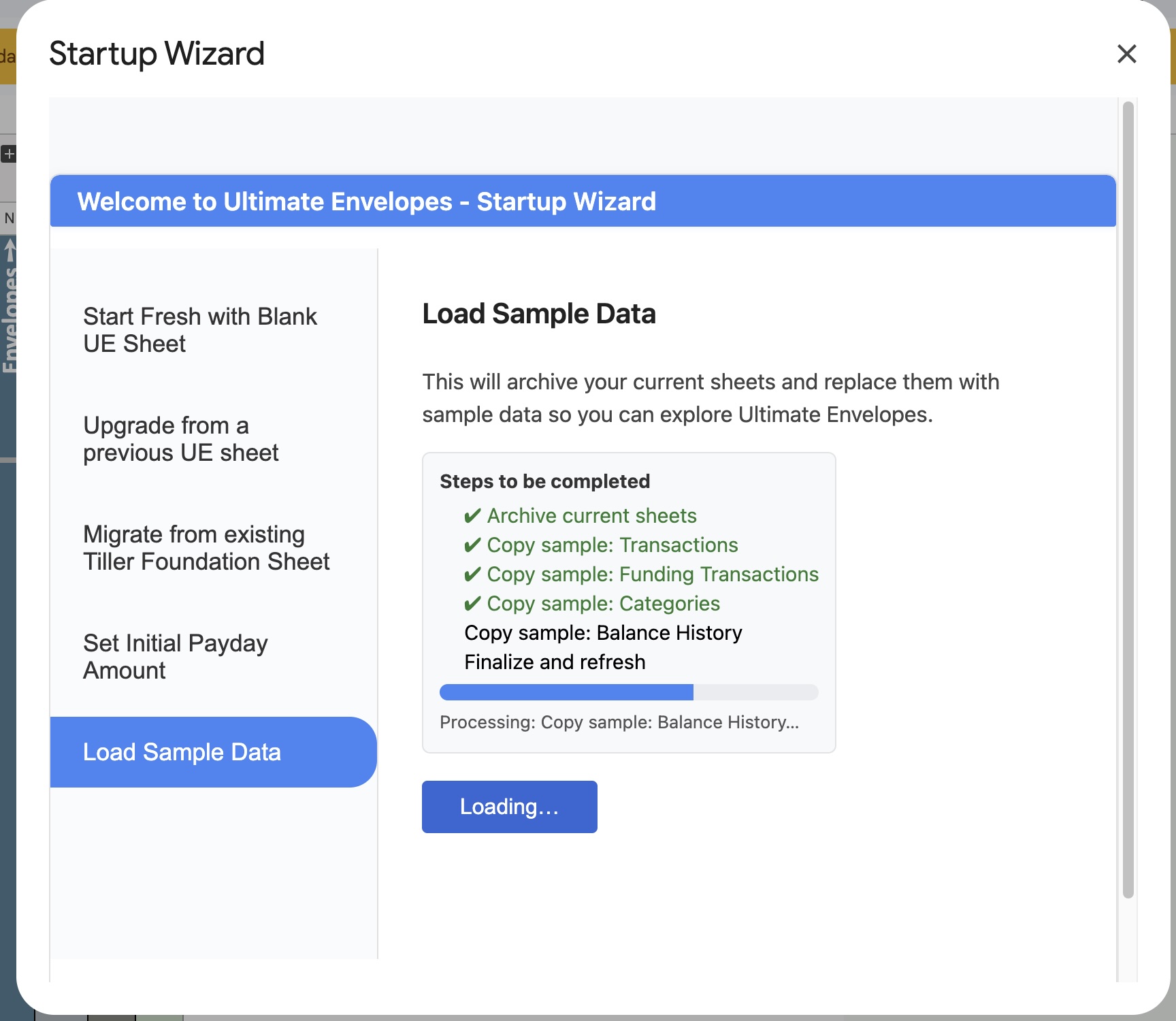
The wizard archives your current sheets first, so nothing is lost. Then it replaces these with sample versions:
- Transactions
- Funding Transactions
- Categories
- Balance History
- Select Load Sample Data, then click Start.
- Wait for each step to finish, then click Close.
When you’re ready to use your own numbers, run the wizard again and choose Start Fresh, Upgrade, or Migrate.
Troubleshooting
- The wizard didn’t open. Make sure you finished the one-time authorization in Getting Started, then refresh the sheet.
- A migration stopped partway. Run the wizard again and choose the same option. If you left “Archive existing sheets” checked, your earlier copies are saved as hidden tabs; show them with Extensions → Ultimate Envelopes → Admin Tools → Unhide All Sheets.
- Still stuck? Email support@ultimateenvelopes.com.