Categorizing Transactions
Categorizing a transaction means assigning it to an envelope, so its amount counts against that envelope’s balance. In Tiller sheets, envelopes are called categories. It takes two taps and saves straight to your spreadsheet.
A transaction needs categorizing when its envelope shows a red Needs Categorization! pill. That covers transactions with a blank category or one marked Uncategorized or Unknown.

Find Transactions That Need Categorizing
There are three ways to find them.
- The alert on the Transactions tab. When any transaction needs a category, a banner reads “N transactions need categorization”. Tap it to show only those transactions. A “Showing uncategorized transactions only” bar appears at the top; tap Show All to go back to the full list.
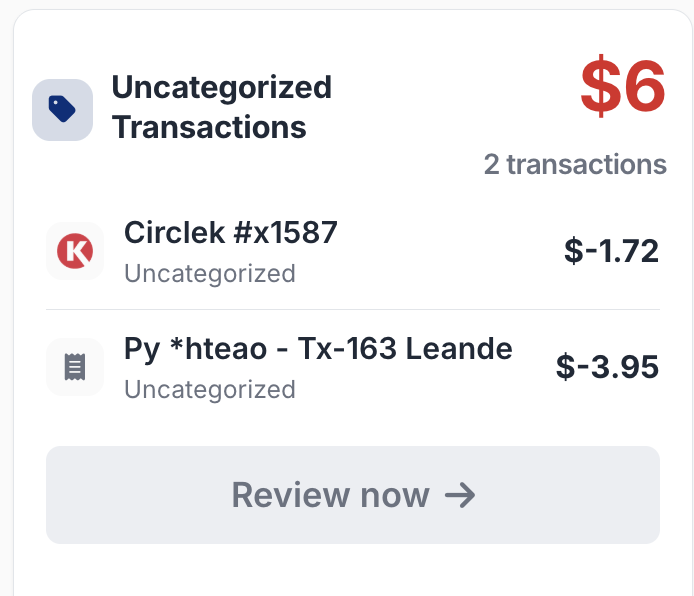
- The Uncategorized Transactions card on the Insights tab. It shows how many need categorizing and their total. Tap a transaction in the card to open it, or tap Review now to jump to the filtered list.
- Scroll the Transactions list. Look for the red Needs Categorization! pills. Months that contain uncategorized transactions open automatically.


Categorize from the Transactions List
This is the fastest way when you have several to do.
- Open the Transactions tab.
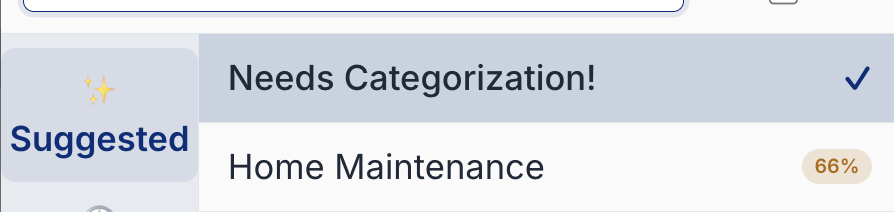
- Tap the red Needs Categorization! pill on the transaction (shown in the first screenshot at the top of this page). Tap the pill itself, not the rest of the row, which opens the transaction details instead.
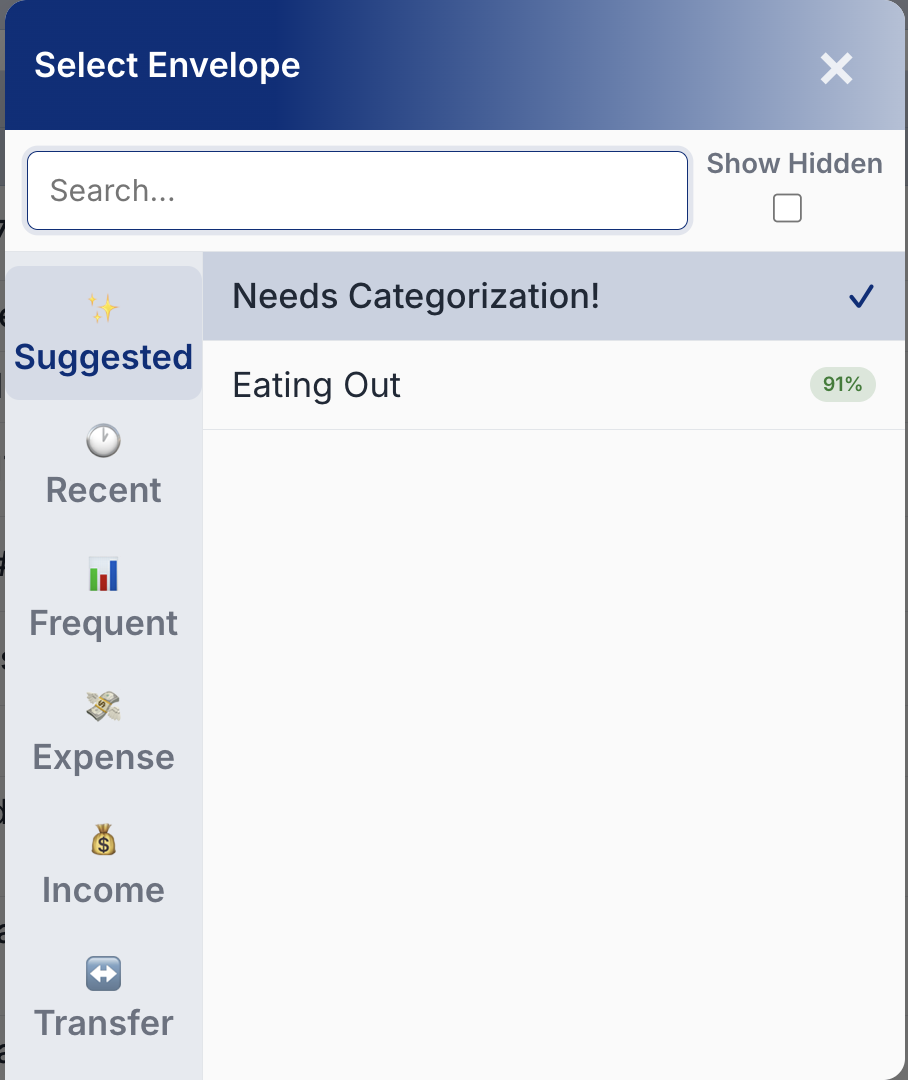
- The Select Envelope picker opens. If the app recognizes the merchant, it opens on the Suggested tab with a confidence score next to each envelope.
- Tap the envelope you want. To look elsewhere, use the tabs on the left or the search box (see Using the Select Envelope Picker).
- The picker closes and the pill changes to the envelope name. A message confirms the update, and the envelope’s balance updates straight away.

If you are viewing only uncategorized transactions, the row disappears from the list once it has an envelope. When the last one is done, the full list comes back.
Categorize from the Transaction Details
Use this when you want to check the transaction first, or change other fields at the same time.
- On the Transactions tab, tap anywhere on the transaction row except the pill. The transaction details open.
- Tap the envelope field, which shows Needs Categorization!.
- The Select Envelope picker opens, on the Suggested tab when there are matches.
- Tap the envelope you want. The field updates.
- Tap Save Changes at the bottom. Unlike the list, the details view does not save until you do this.
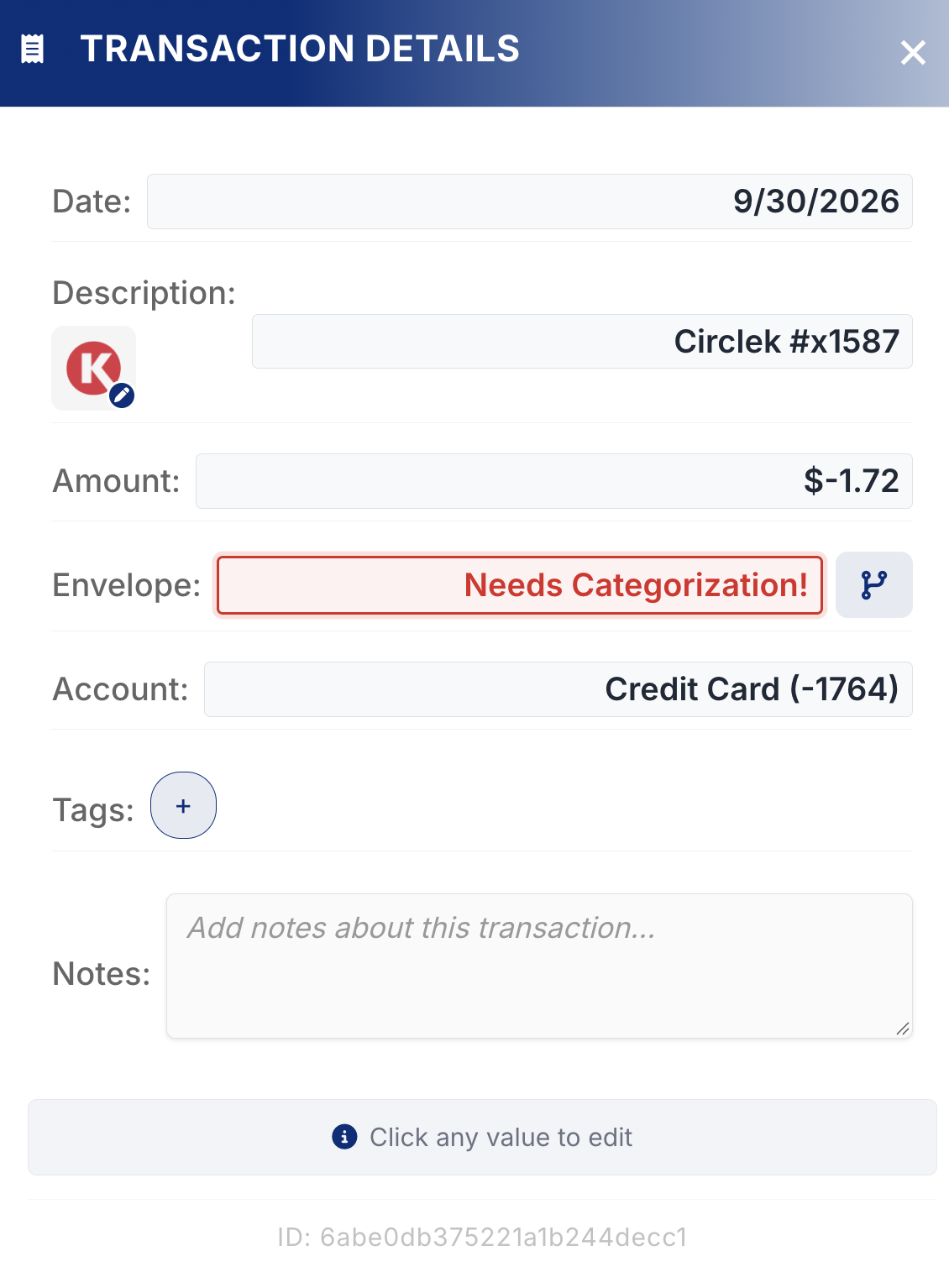


You can edit other fields, like the description or notes, before tapping Save Changes. They all save together.
Using the Select Envelope Picker
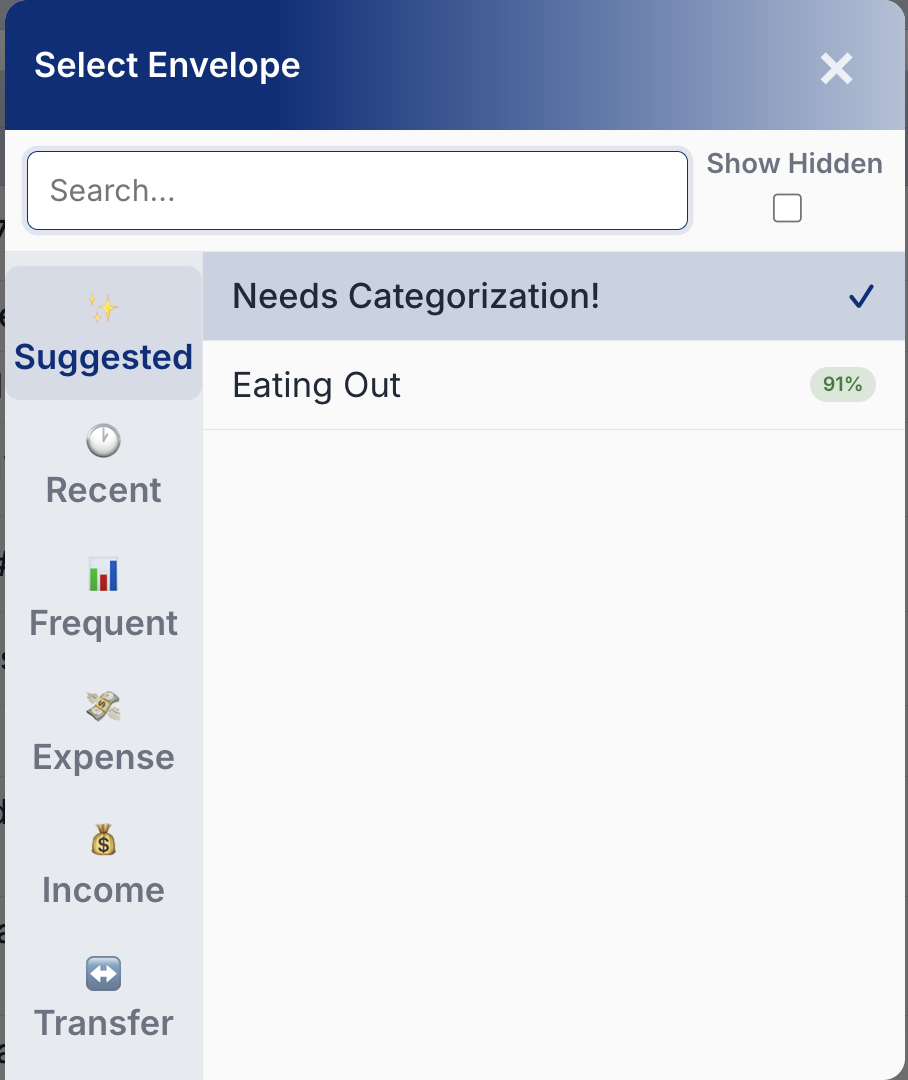
The picker has a search box at the top, tabs down the left, and the envelopes on the right.
| Tab | What it shows |
|---|---|
| Suggested | Envelopes you used for similar past transactions, each with a confidence score. Only shown for uncategorized transactions that have a match. |
| Recent | Envelopes you picked most recently, then others used in the last 30 days |
| Frequent | Envelopes used most often in the last 30 days, with a count |
| Expense | All expense envelopes, A to Z |
| Income | All income envelopes, A to Z |
| Transfer | All transfer envelopes, A to Z |
Confidence Scores on the Suggested Tab
- Green, 85–100%: the description and amount closely match past transactions.
- Amber, 60–84%: a good match, but the amount or description differs, or past transactions used different envelopes.
- Grey, 40–59%: a weak match. Check it before you pick it.
The score is a guide. Pick whichever envelope is right; your choice teaches future suggestions.
Search
Type part of an envelope’s name in the search box. Results come from every tab, including hidden envelopes, which show an eye-slash icon.
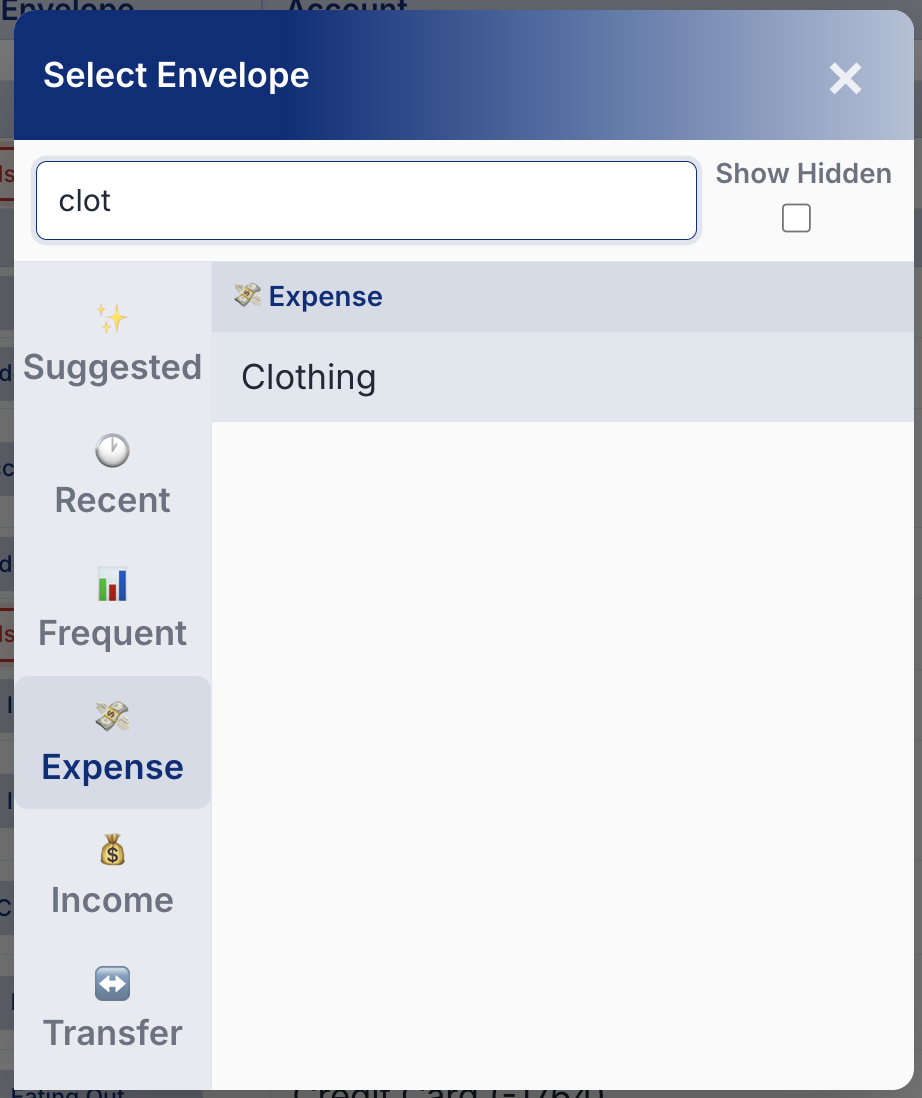
Show Hidden
Hidden envelopes are left out of the Expense, Income and Transfer tabs. Tick Show Hidden to include them. You don’t need it when searching.
Closing Without Choosing
Tap the × in the top corner, tap outside the picker, or press Esc on a keyboard. Nothing changes.
The picker remembers the last tab you used, except Suggested, which only opens when there are matches.
Change, Clear or Split a Category
Change it. Tap the envelope name on the transaction, or open the details and tap the envelope field. Pick a new envelope the same way. The Suggested tab doesn’t appear here, because the transaction already has a category.
Clear it. In the picker, tap Needs Categorization! at the top of the list. The transaction goes back to needing a category.
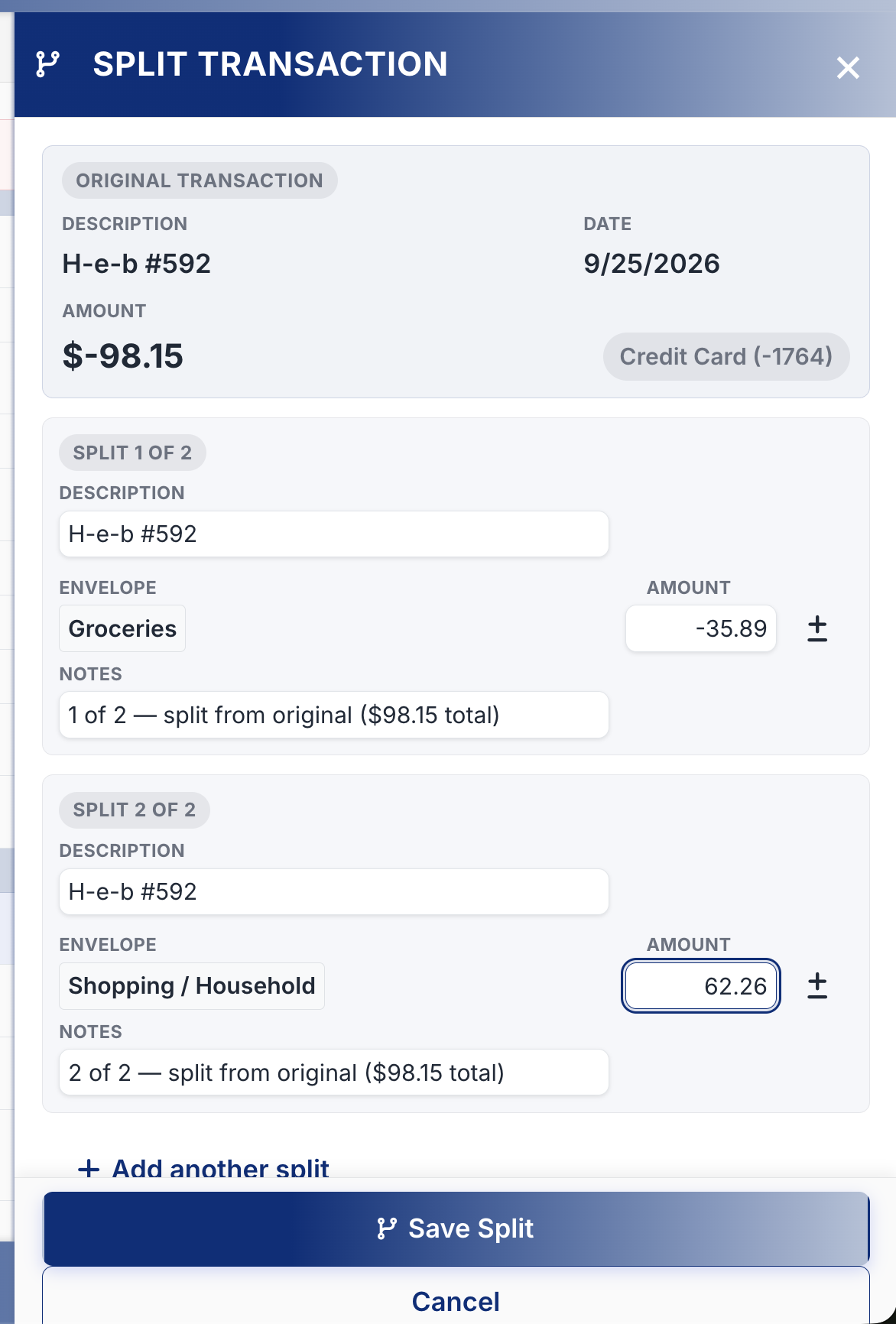
Split it across envelopes. For a purchase that covers more than one envelope, like a supermarket receipt with groceries and household items:
- Open the transaction details.
- Tap the split icon (a branching arrow).
- Give each split line an envelope and an amount. Tap Add another split for more lines.
- When the lines add up exactly to the total, tap Save Split. Until then the button shows the amount remaining.
See Split Transaction for the full walkthrough.
Tips and Common Questions
| Question | Answer |
|---|---|
| Why is there no Suggested tab? | It only appears for uncategorized transactions from a merchant you’ve categorized before, with a match of 40% or more. |
| A suggestion is wrong. | Pick the right envelope from another tab or by searching. Suggestions improve after a few corrections. |
| I can’t find an envelope. | Type its name in the search box. Search includes hidden envelopes. |
| I changed the envelope in the details, but it didn’t stick. | Tap Save Changes before closing the details. |
| How do I see only what’s left to do? | Tap the “N transactions need categorization” alert on the Transactions tab. |
| I don’t see these features. | Hard refresh the app: Cmd+Shift+R on Mac, Ctrl+Shift+F5 on Windows. |