Budget Tools New
Budget Tools let your budgets and funding templates change over time without losing what they were before. Raise a budget starting in March and January and February keep their old amounts. You can also keep as many funding templates as you like.
Everything lives on one new tab, Budget History, and you edit it from the Budget Tools menu. You don’t type into the Categories sheet for budgets or templates anymore.
Before you start: migrate your Categories sheet. Budget Tools only work after a one-time migration that copies your budgets and templates into Budget History. Migrate Your Categories Sheet →
Migrating is optional. If you don’t, the Sheet and the Companion App keep working as they do today, but you won’t get all of the features. Without it:
- Budgets stay as one column per month on Categories, so they keep piling up over the years.
- You’re limited to four funding templates, and their amounts have no history: changing one changes it for every month.
- No Edit Budgets and Templates, Bulk Edit, Budget Settings, Rename Template, or Add Envelope in the Sheet’s menu.
- In the Companion App: no Budget & Templates section in envelope details, and Payday is limited to the four templates, with no new, retired, or deleted templates.
Once you’ve migrated, manage budgets and funding templates only with Budget Tools. The budget and template amounts on Categories become read-only and fill in from Budget History, so anything typed there is replaced. Change them with:
- Edit Budgets and Templates, for one envelope at a time
- Bulk Edit, for many envelopes at once
- Budget & Templates in the Companion App
What Changes
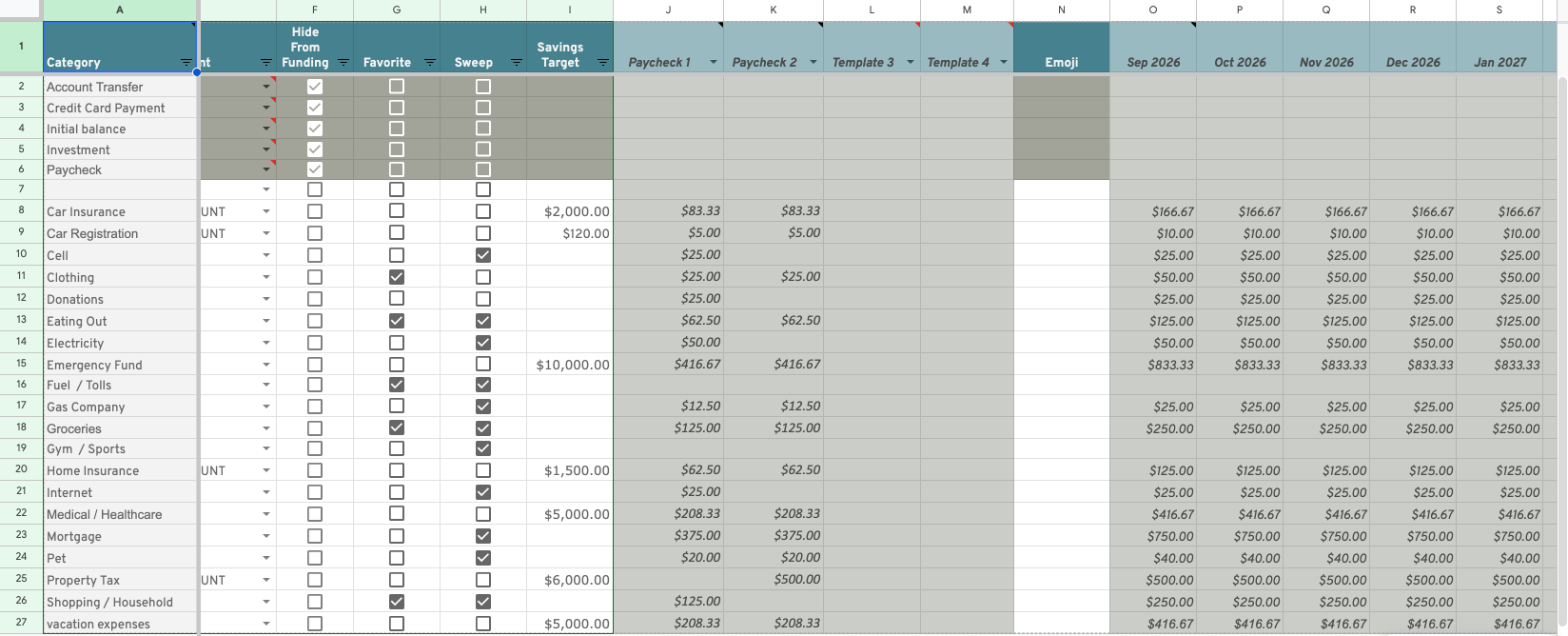
- Your Categories sheet keeps its layout. Every column stays where it is, so your formulas, reports, and Tiller tools keep working.
- The funding template columns and monthly budget columns become read-only. They fill in automatically from Budget History, and they’re shaded so you can tell at a glance.
- Budget History records each change with the month it starts. The newest entry on or before a month is the one that applies.
- More than four templates. The Sheet still shows four templates on Categories and the Envelope tab. You choose which four. The UE Companion App can use all of them.
What you can edit on Categories after migrating
| Columns | How to change them | |
|---|---|---|
| A–I: Category, Group, Type, Hide From Reports, Funding Account, Hide From Funding, Favorite, Sweep, Savings Target | ✏️ Editable | Type in the sheet, as before |
| N: Emoji | ✏️ Editable | Type in the sheet |
| J1–M1: the four template names (header row only) | ✏️ Editable | Pick a template from each header’s dropdown |
| J–M, row 2 down: template amounts | 🔒 Read-only (shaded) | Budget Tools → Edit Budgets and Templates or Bulk Edit, or the Companion App |
| O onward: monthly budget columns | 🔒 Read-only (shaded) | Budget Tools → Edit Budgets and Templates or Bulk Edit, or the Companion App |
The read-only columns are shaded so they’re easy to spot. They’re formulas that fill in from Budget History, so anything typed there is replaced the next time they refresh.
Migrate Your Categories Sheet (One Time)
Before you can use Budget Tools, move your existing budgets and templates into Budget History.
- Open the Budget Tools menu and choose Migrate Categories Sheet.
- When asked where the Categories sheet is, click Yes if it’s in this spreadsheet. Click No to paste the link of a different spreadsheet.
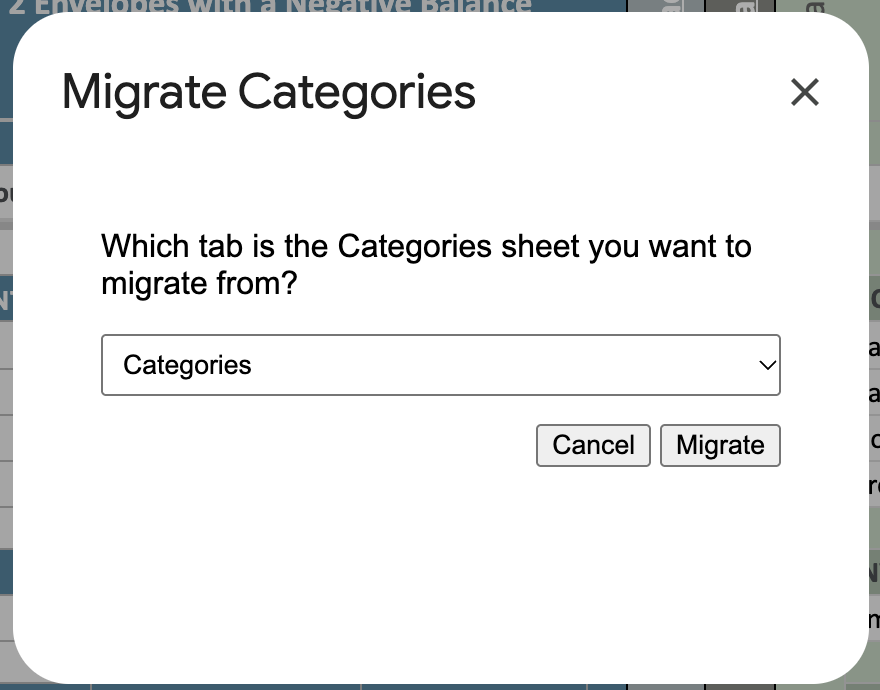
- Pick the tab you want to migrate from. Usually that’s Categories.
- Click Migrate. The button shows its progress while it works.
- When it says Success, click Close.
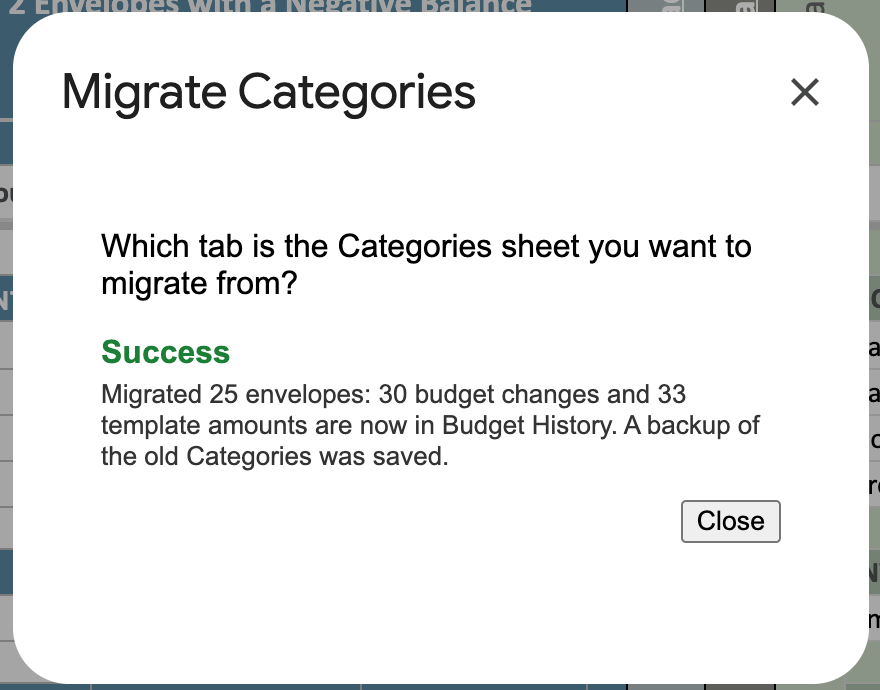
Your current Categories sheet is copied to a backup tab before anything changes. The migration copies your funding template amounts and monthly budgets into Budget History. Then it turns those columns on Categories into read-only formulas.
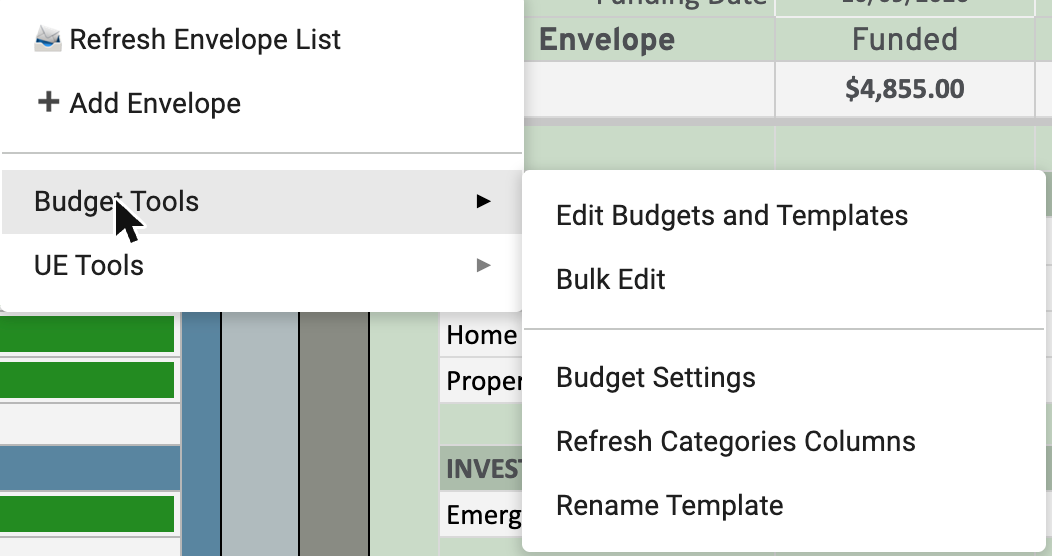
After migrating, the Budget Tools menu shows its full set of options. Before migrating, it only shows Migrate Categories Sheet.
Use the latest version of the UE Companion App with a migrated sheet. It saves budget and template changes to Budget History for you.
How Budget History Works
Each row on Budget History is one amount that starts in a given month:
| Category | Type | Template | Effective Month | Amount |
|---|---|---|---|---|
| Groceries | Budget | Jan 2026 | 600 | |
| Groceries | Budget | Mar 2026 | 650 | |
| Groceries | Funding | Paycheck 1 | Jan 2026 | 300 |
- Type is Budget for monthly budgets or Funding for funding templates.
- The amount stays in effect until a later row changes it. Here, Groceries is $600 for January and February, then $650 from March on.
- Setting an amount to $0 only adds a row when it ends an earlier amount. If an envelope never had a budget, there’s nothing to record.
You rarely need to open Budget History yourself. The Budget Tools forms and the Companion App keep it up to date.
Edit Budgets and Templates
The main editor, one envelope at a time.
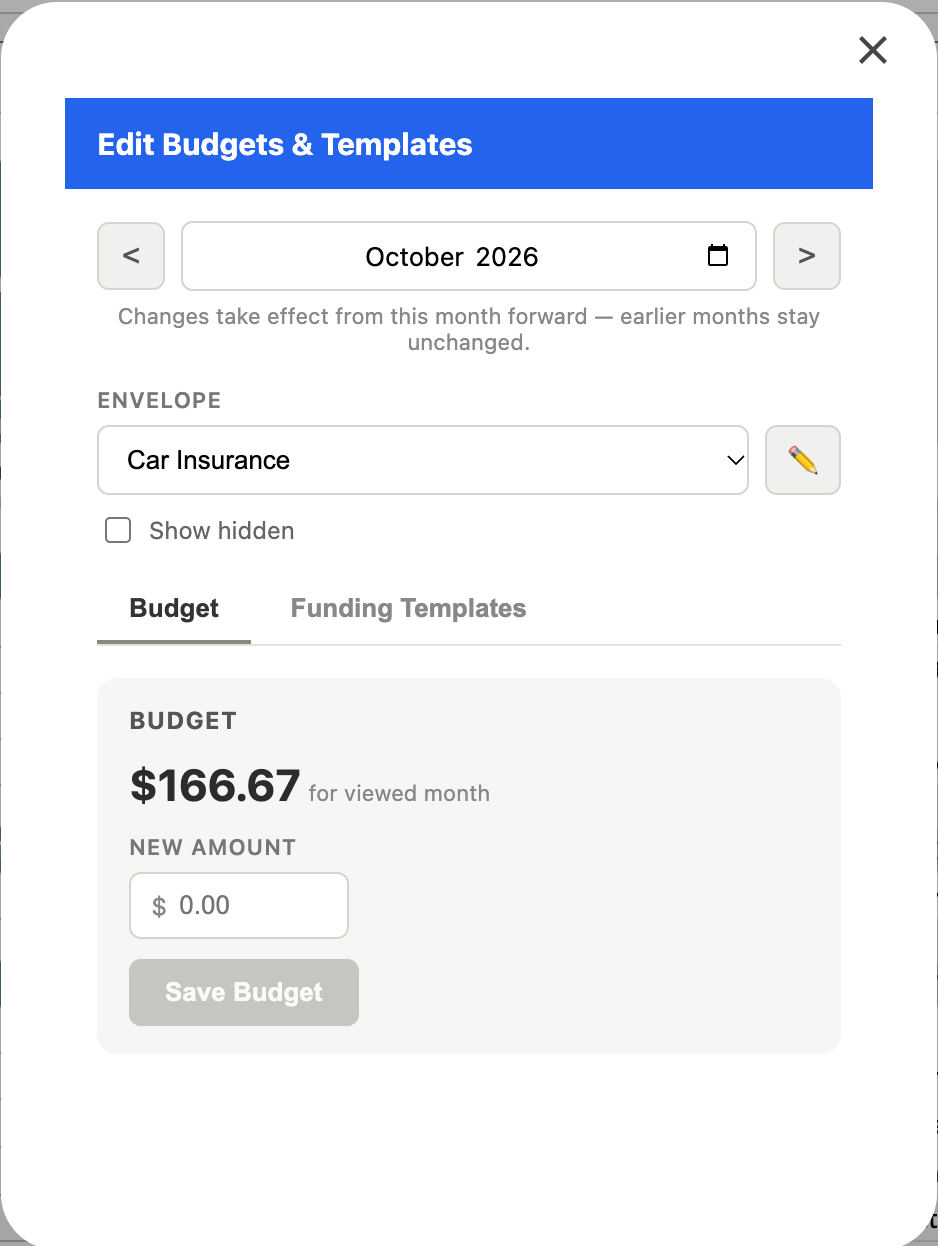
- Choose Budget Tools → Edit Budgets and Templates.
- Use the ‹ › arrows or the month box to pick the month the change starts.
- Pick an envelope. Tick Show hidden to include hidden envelopes.
- Make your change on either tab, then save.
Budget tab
- Shows the budget in effect for the month you picked.
- Enter a New Amount and click Save Budget.
Funding Templates tab
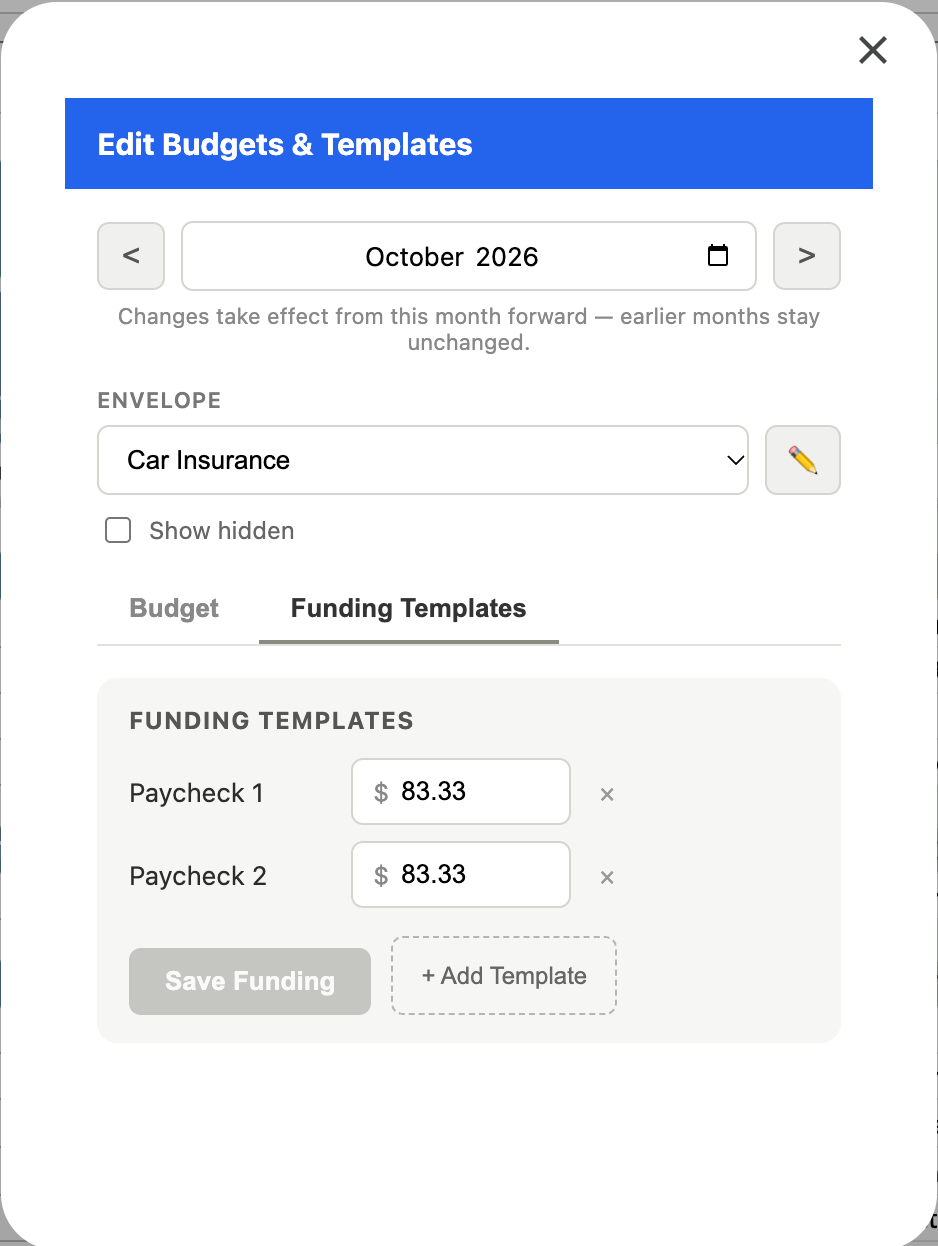
- Lists the templates this envelope has an amount for in that month.
- Change an amount and click Save Funding.
- Click × next to a template to remove it from that month on.
- Click + Add Template to give the envelope an amount for another template. Start typing to pick an existing template or enter a new name.
A ⏱ next to an amount means it changes again in a later month. Hover over it to see when.
The ✏️ button next to the envelope opens its details (Funding Account, Group, Type, Savings Target, the checkboxes, and Emoji) so you can edit them in the same place.
Save buttons stay greyed out until you’ve changed something.
Bulk Edit
Change many envelopes at once.
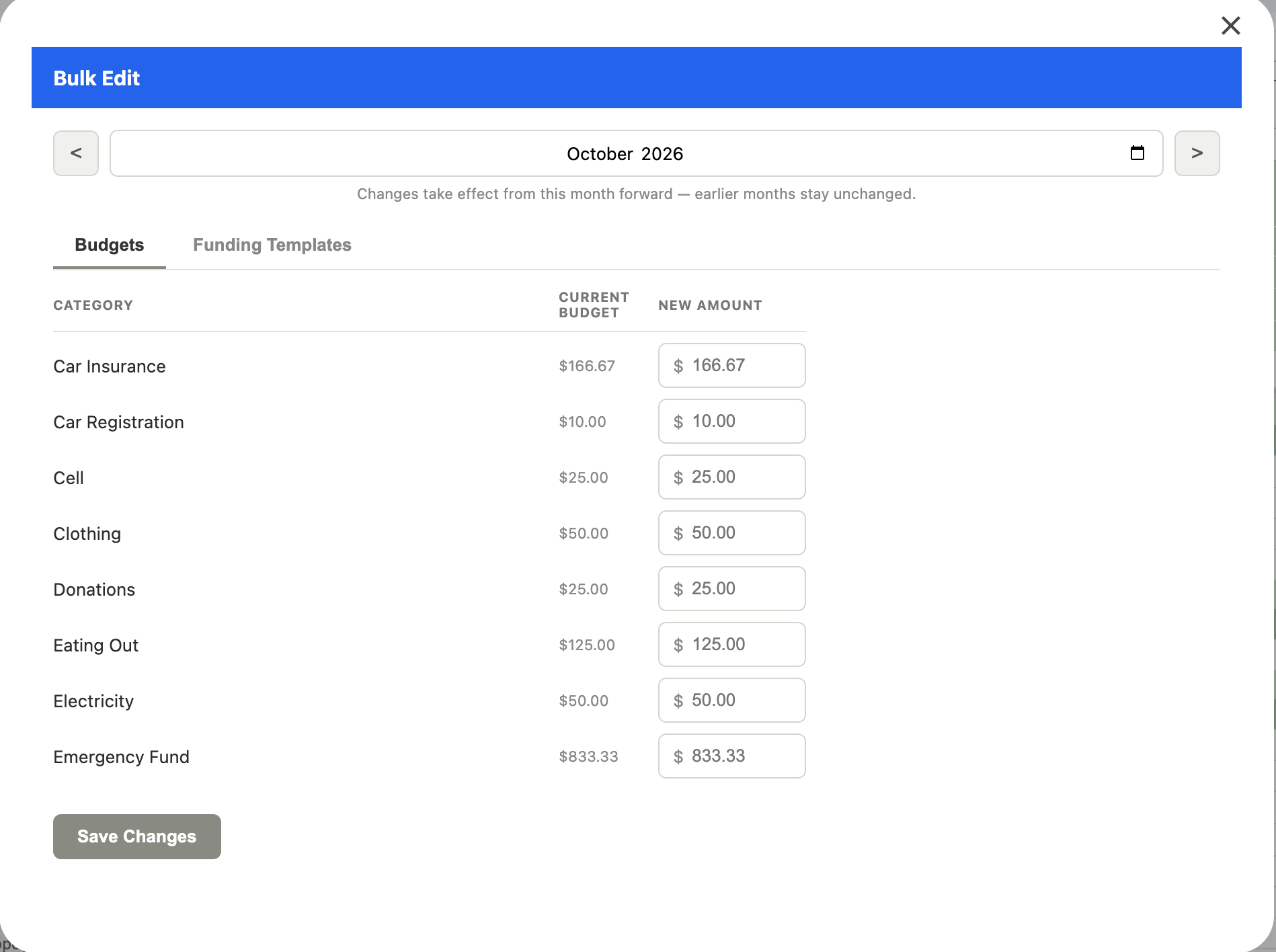
- Choose Budget Tools → Bulk Edit.
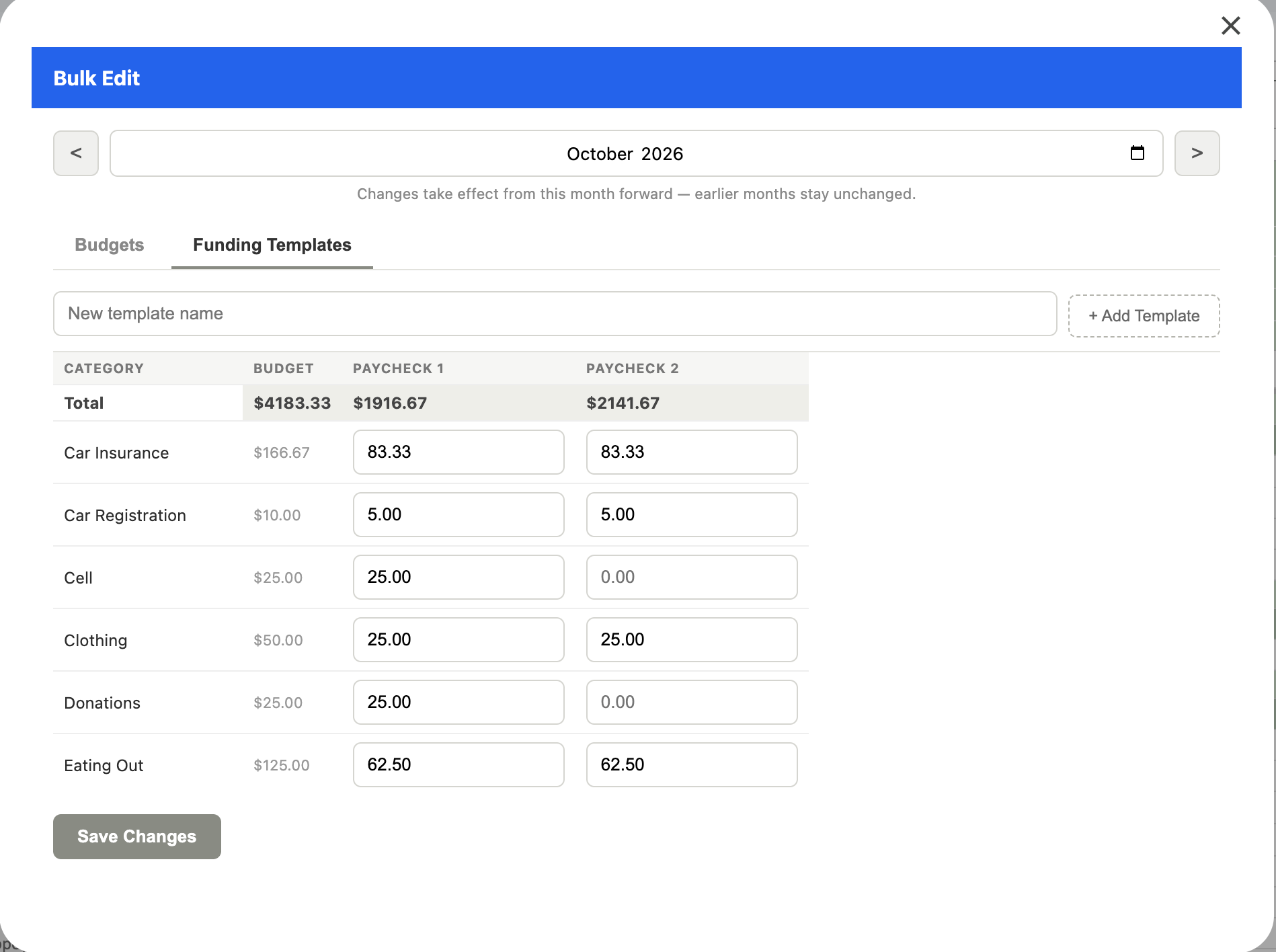
- Pick the month the changes start.
- Use the Budgets tab to see every envelope’s current budget and enter new amounts.
- Use the Funding Templates tab to see every envelope’s amount for each template, side by side, with a Total row for each template. To start a new template, type its name and click + Add Template.
- Click Save Changes. Only the amounts you changed are written.
Choose Which Four Templates the Sheet Shows
The Sheet has four template columns on Categories, used by the Envelope tab and its template dropdown. On a migrated sheet, the header cells of those four columns are dropdowns. Pick any template there to show it in that column.
Swapping a template out of a column doesn’t delete it. Its amounts stay in Budget History, and the Companion App can still use it.
Rename a Template
- Choose Budget Tools → Rename Template.
- Pick the template and enter its new name.
- Click Rename.
The name changes everywhere: every Budget History row, and the Categories column header if it’s one of your four.
Set How Many Future Months to Show
The monthly budget columns on Categories (column O onward) show a run of months so you can plan ahead. Choose how many:
- Choose Budget Tools → Budget Settings.
- Pick the Number of future months: 3, 6, 9, 12, 18, or 24. The default is 12.
- Click Save. The month columns on Categories update straight away.
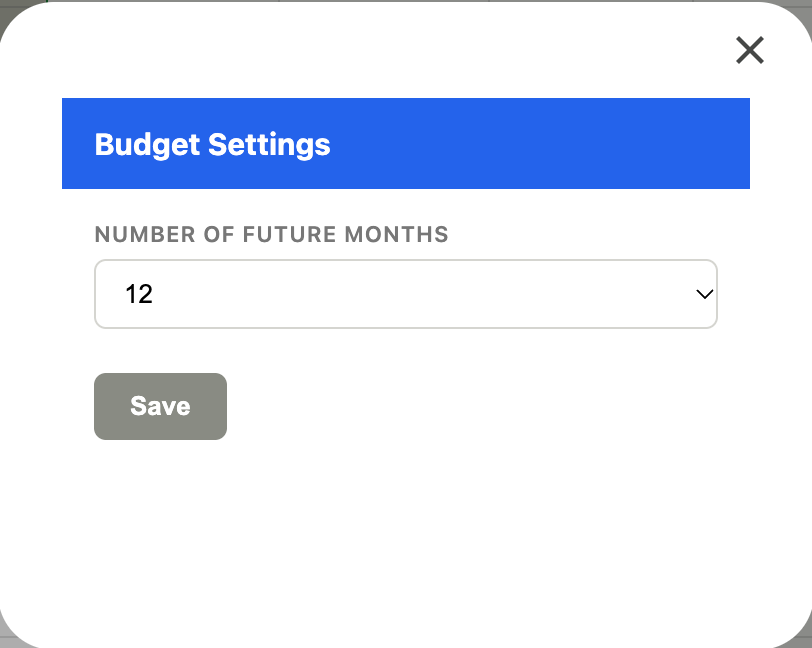
The columns start one month before your budget month, so you can see last month alongside this one. The setting is saved on the Budget History tab (cell J1).
Fixing the Read-Only Columns
If the shaded template or budget columns on Categories get typed over or stop filling in, choose Budget Tools → Refresh Categories Columns. It puts their formulas and shading back.
Typing into the shaded columns shows a warning, because anything you type there is replaced the next time they refresh. Use the forms above instead.
Other Menu Changes
- ➕ Add Envelope (top of the UE menu, after migrating) creates a new envelope with a form. Funding Account is a dropdown of your accounts. The envelope list refreshes automatically when you save.
- Emoji: Categories has an Emoji column. The UE Companion App shows each envelope’s emoji in place of the envelope icon.
- UE Tools → Admin Tools → Refresh Data Validation rebuilds the sheet’s dropdowns and checkboxes and tidies up old values (for example, old “Visible” entries in Hide From Funding become blank).
- The UE menu now groups Setup Tools and Admin Tools under UE Tools. Reset All Sheets!!! sits at the very bottom.