Payday Tab
When you get paid, use the Payday tab to give every dollar a job. Enter how much goes into each envelope, then fund them all at once.
Payday funding is available when the app is connected to a UE Sheet. It doesn’t apply to Tiller Foundation sheets.
The Payday Screen
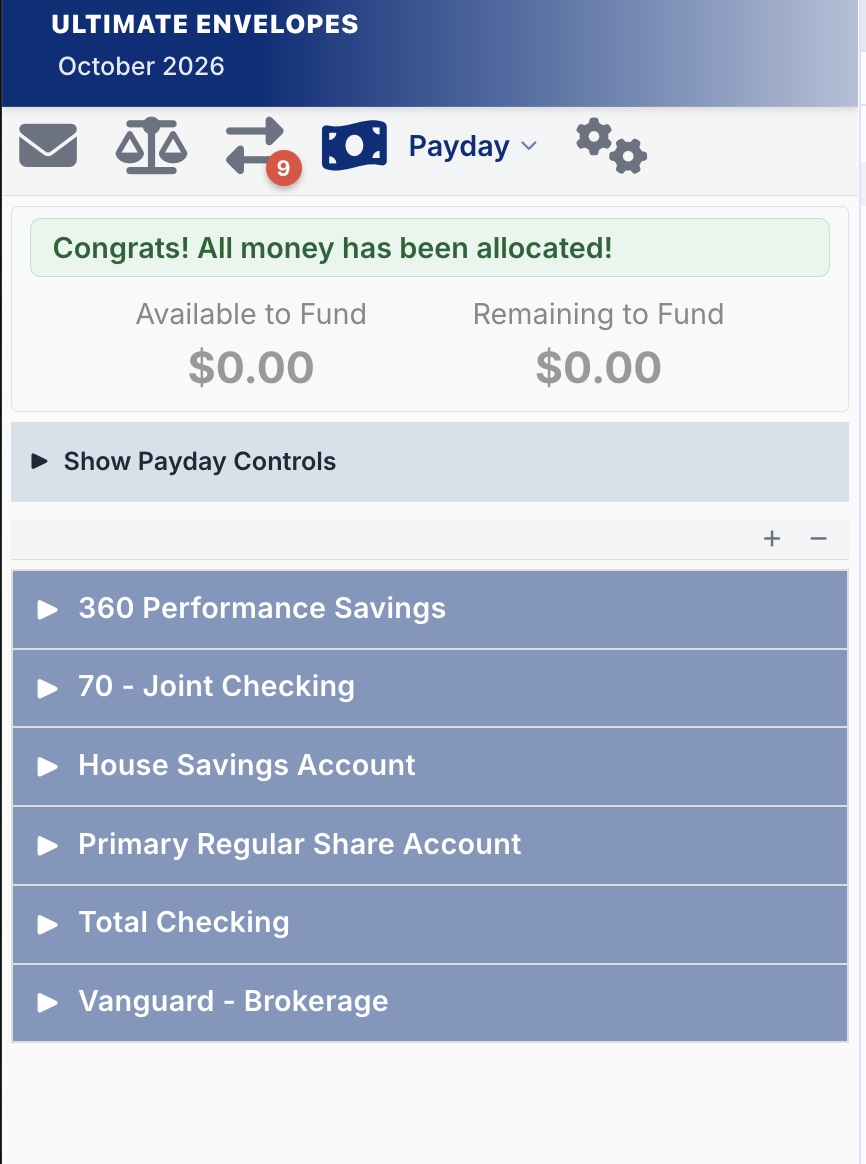
At the top, two numbers keep you on track:
- Available to Fund: income that hasn’t been put into envelopes yet.
- Remaining to Fund: how much your envelopes still need. It counts down to $0.00 as you enter amounts.
When everything is covered, you’ll see Congrats! All money has been allocated!
Envelopes are grouped by their funding account. Tap an account to open it, or use + / − to open or close them all. Each account’s header shows how much its envelopes still need.
Each Envelope
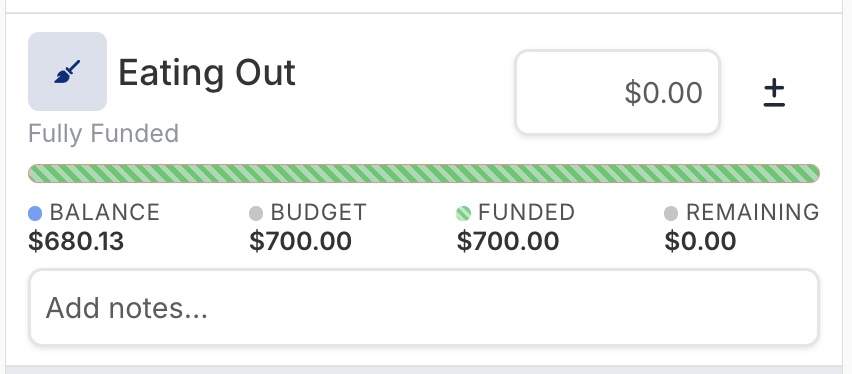
- Funding amount: type how much to add.
- Use ± to make it negative and take money out of the envelope.
- You can type simple math, like
250+75, and it’s worked out for you.
- Under the name: how much the envelope still needs to be fully funded, or Fully Funded once it’s covered.
- Progress bar and numbers: the envelope’s Balance, Budget, Funded so far this month, and Remaining to fund.
- Notes: add a comment. It’s saved with the funding in your sheet’s Funding Transactions.
Fund Your Envelopes
- Enter amounts for the envelopes you want to fund, or apply a funding template.
- Check the Funding Date. It defaults to today (or the 1st, if you’re viewing a future month).
- Tap Fund Envelopes at the bottom of the screen.
The amounts are saved to your sheet’s Funding Transactions, and your envelope balances update.
Payday Controls
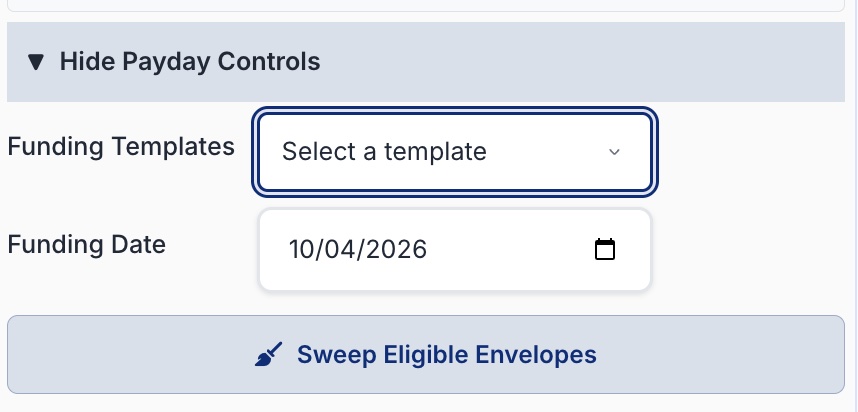
Tap Show Payday Controls to open them.
| Control | What it does |
|---|---|
| Funding Templates | Pick a saved template to fill in amounts for a specific paycheck or account. |
| Funding Date | The date the funding is recorded on. |
| Sweep Eligible Envelopes | Fills in amounts that bring every sweep-enabled envelope back to $0.00. |
Sweeping Envelopes
Sweeping empties an envelope’s leftover balance (or covers its overspending) so it starts fresh. It works on envelopes that have Sweep turned on.
- One envelope: tap the broom icon next to its name.
- All of them: tap Sweep Eligible Envelopes.
A note like “Swept $-25.00 on …” is added automatically. Tap the broom again to undo before you fund.
Funding Templates
Templates save the amounts you usually give each envelope, for example one per paycheck. Pick one under Payday Controls to fill in its amounts, then adjust anything before you fund.
Edit a Template
- Tap Payday in the tab bar again, then tap Edit Templates.
- Choose the template to edit (for example, Paycheck 1, Paycheck 2).
- Change the amounts. Each account header shows how many envelopes have an amount and the total.
- Tap Save Template. To leave without saving, tap ×.
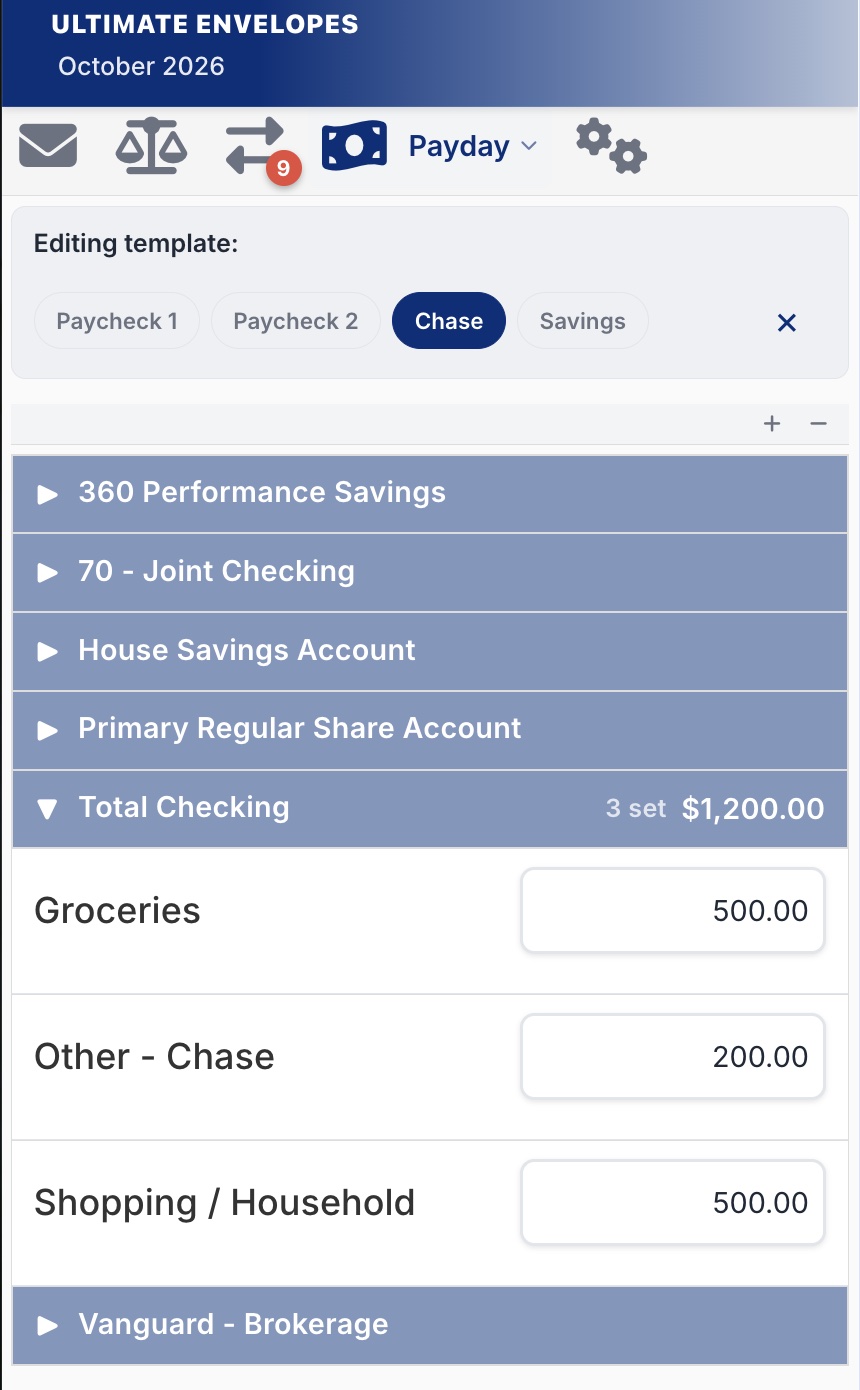
Editing a template only changes its saved amounts. Nothing is funded until you use the template on the Payday screen and tap Fund Envelopes.