Envelopes Tab
See all your envelopes and their current balances at a glance, then tap into any envelope for charts and recent transactions.
Envelope Balances
Envelopes are organized in collapsible groups, just like the sheet. Tap an envelope to see recent transactions and a spending history chart.
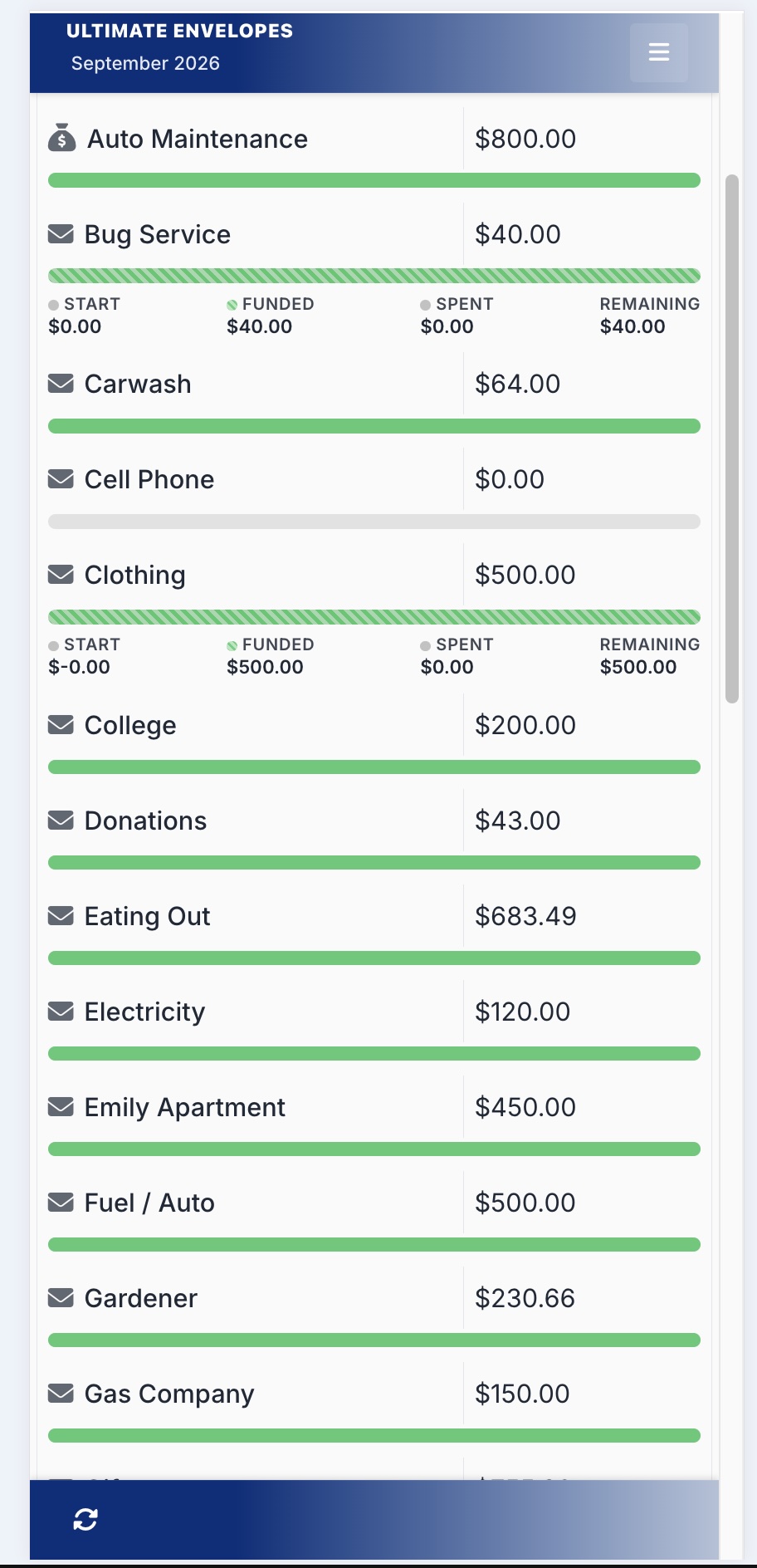
Looking at a different month? Tap the month and year at the top of the screen.
Envelope Insights
Tap into any envelope for a full set of insights: current balance, a 12-month spending history chart, spending comparisons, funding progress, and savings balance over time. Tap a bar or point on any chart to focus on that period.
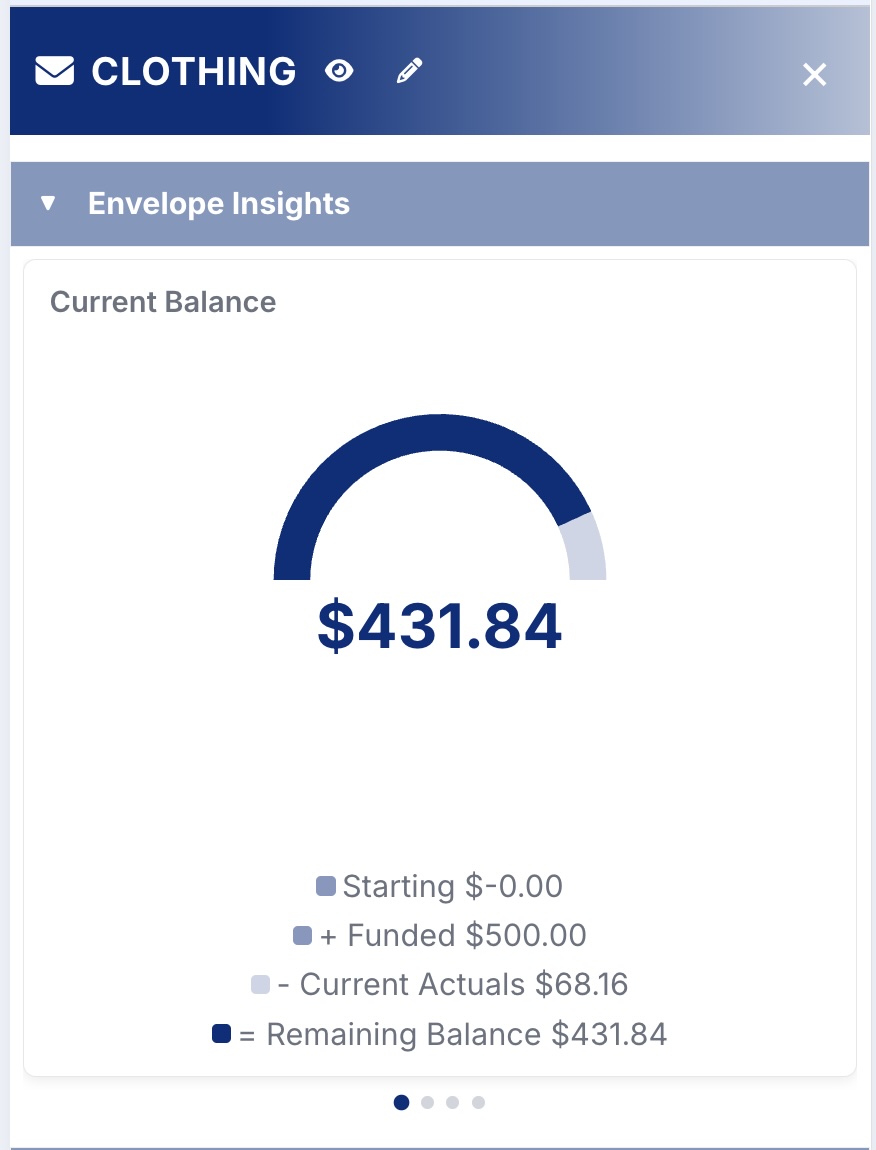
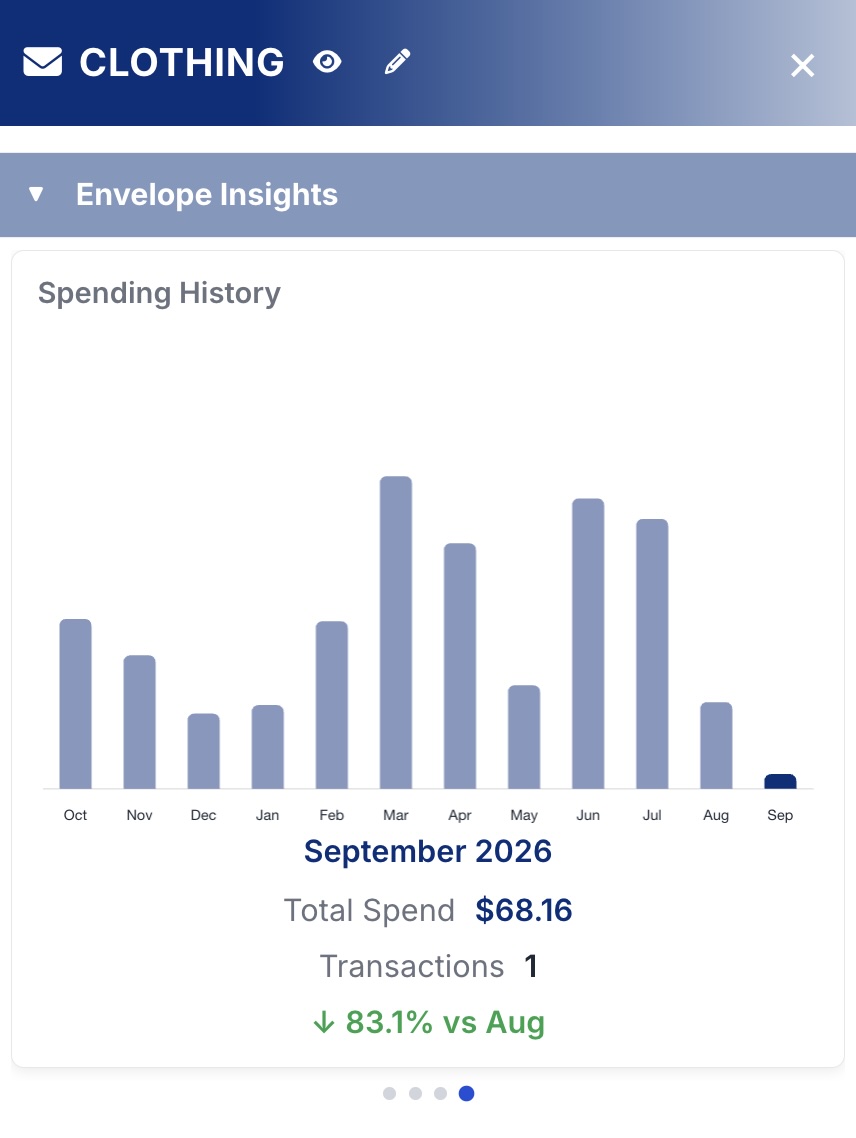
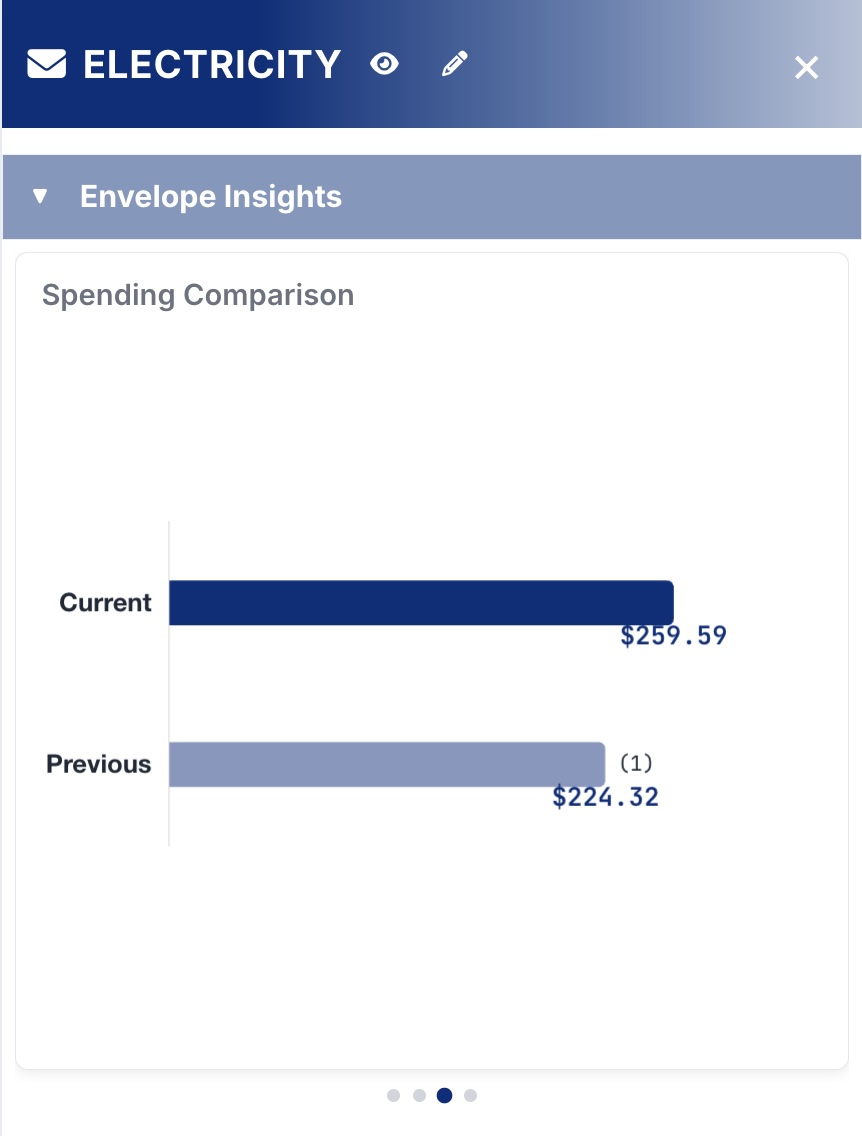
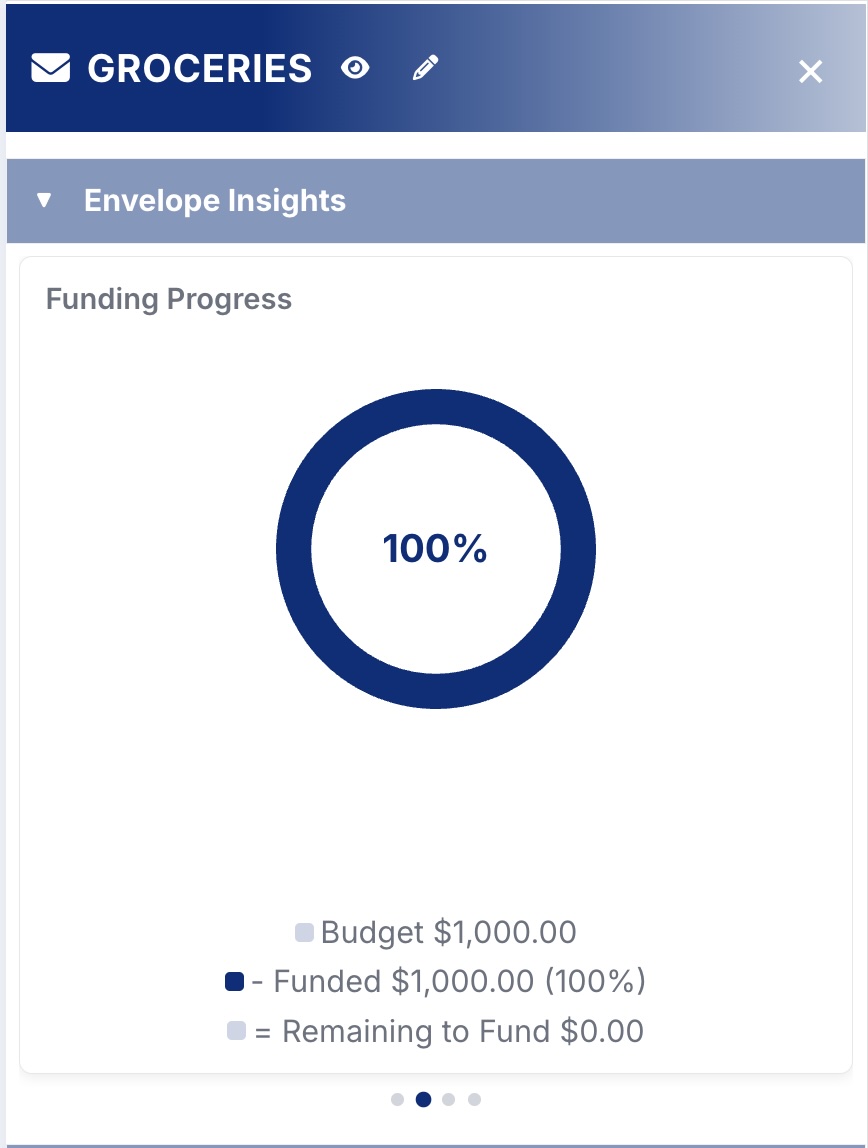
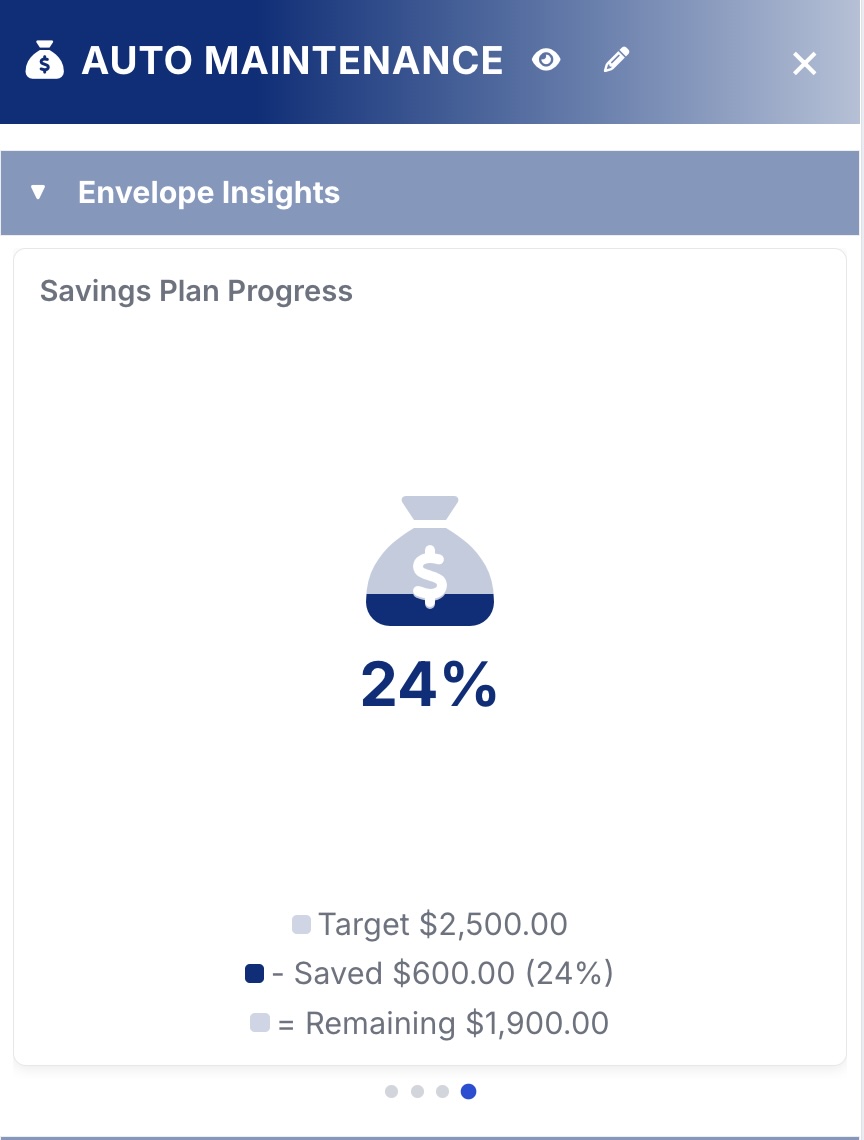
You choose which charts appear, and in what order, in Envelope Settings.
Envelope Settings
- Go to the Envelopes tab.
- Tap Envelopes in the tab bar again to open its menu (the small arrow next to the name is the hint), then tap Settings.
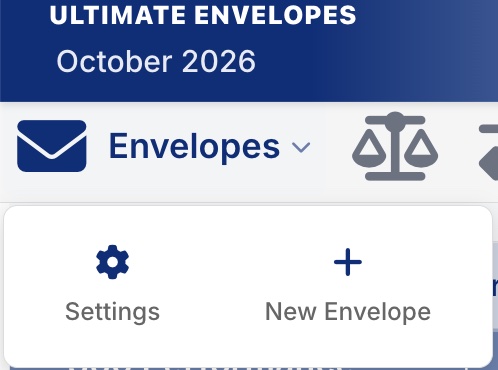
The same menu has New Envelope for creating an envelope.
| Setting | What it does |
|---|---|
| Filter By | Which envelopes to show: All Visible, All, Favorite, Hidden, Income, Transfer, Negative, Positive, or Zero Balance. |
| Group By | Group envelopes by Account, Group, Type, or Visibility, or turn grouping Off. |
| Column Visibility (computer only) | Choose columns: Spent, Budget, Funded, Remaining, Total Balance, Beginning Balance, Previous Spend, Transaction Count. Phones show envelopes as cards, so this section only appears on larger screens. |
| Display | Show or hide each envelope’s progress bar. |
| Envelope Insight Charts | Choose which charts appear when you open an envelope: Current Balance, Funding Progress, Spending Comparison, Spending History, Savings Plan. |
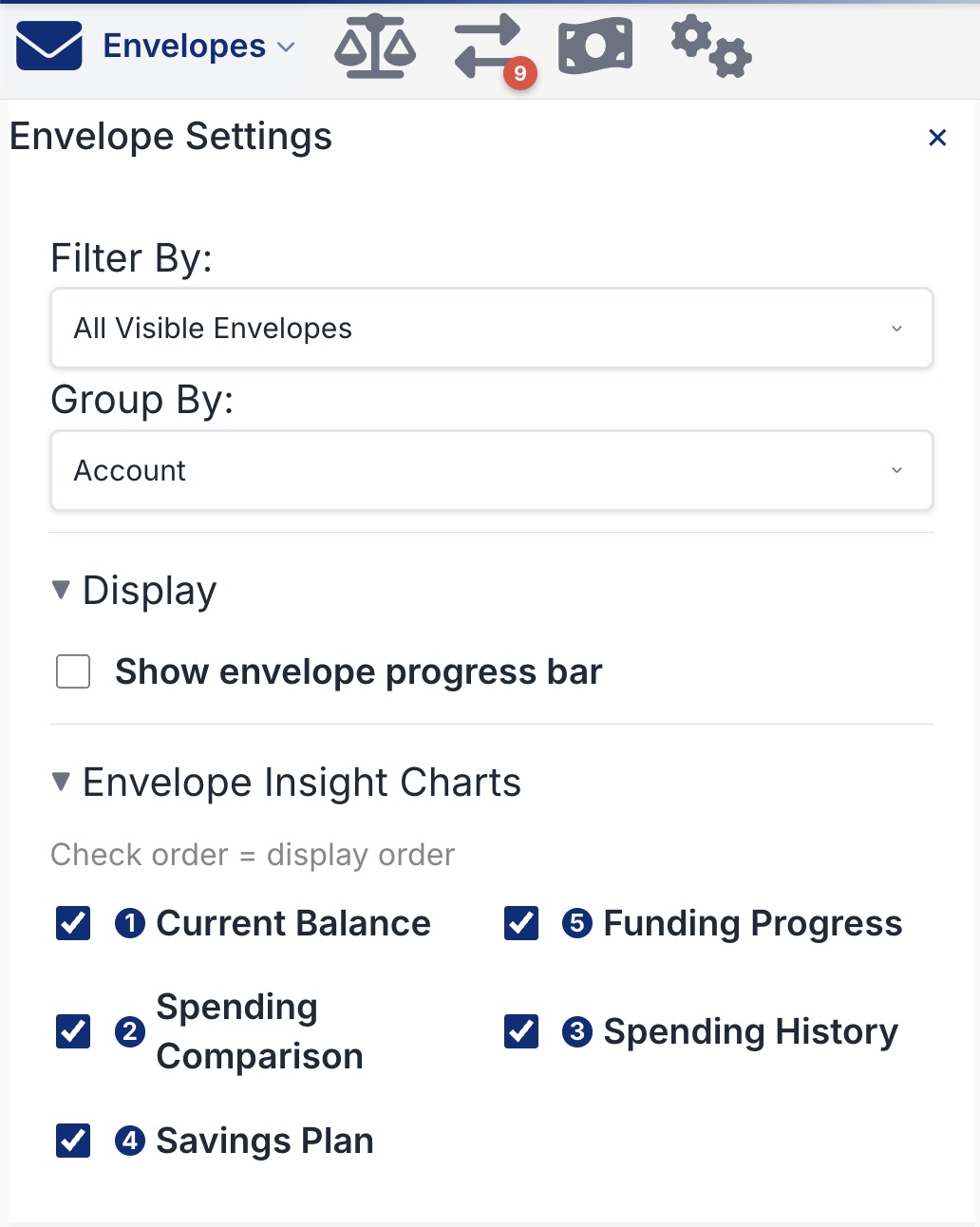
Tip: for columns and charts, the order you check them is the order they appear. The number next to each chart shows its position.
Column choices are remembered by the browser you set them in. If you use the app on both your phone and computer, set them on each.