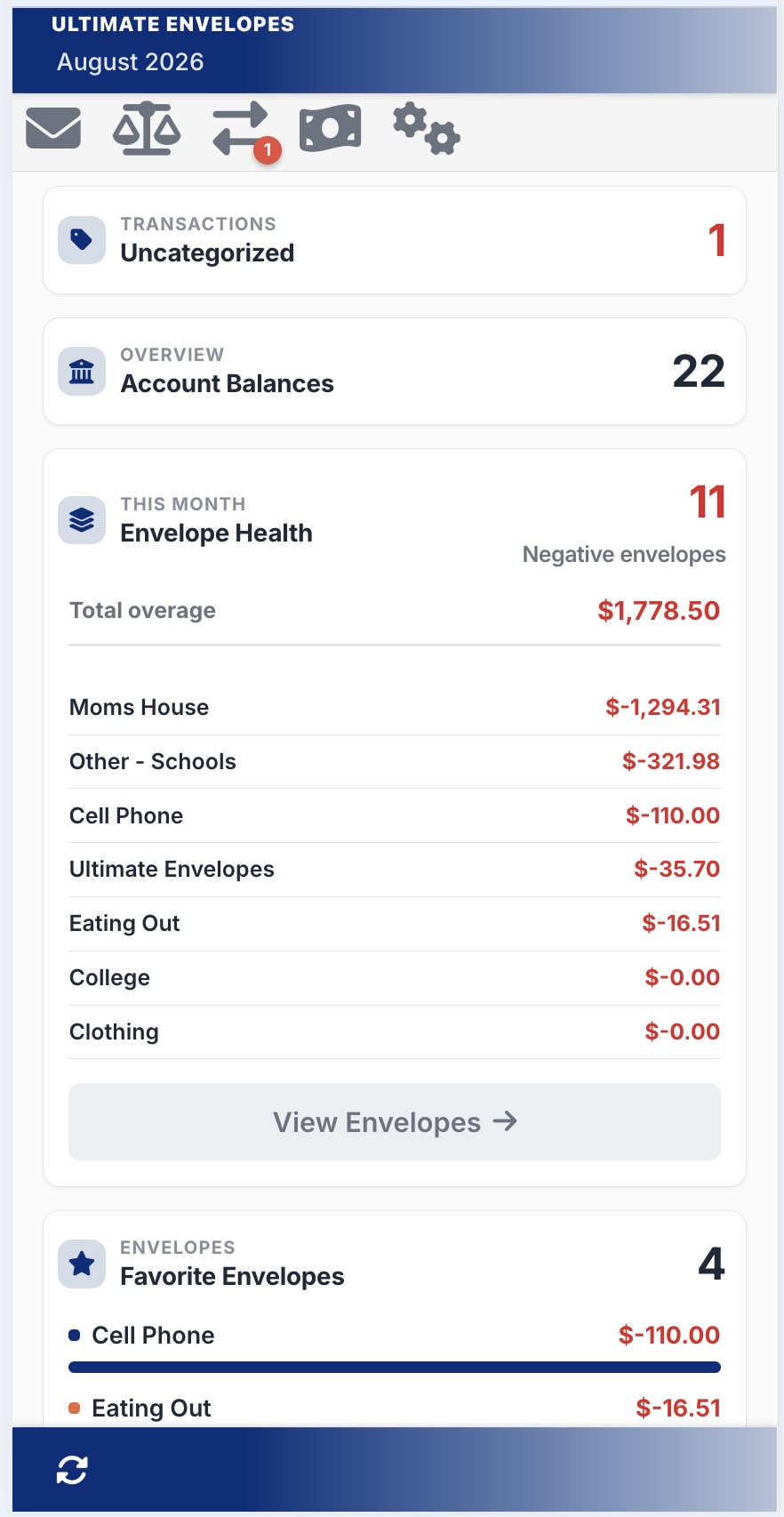
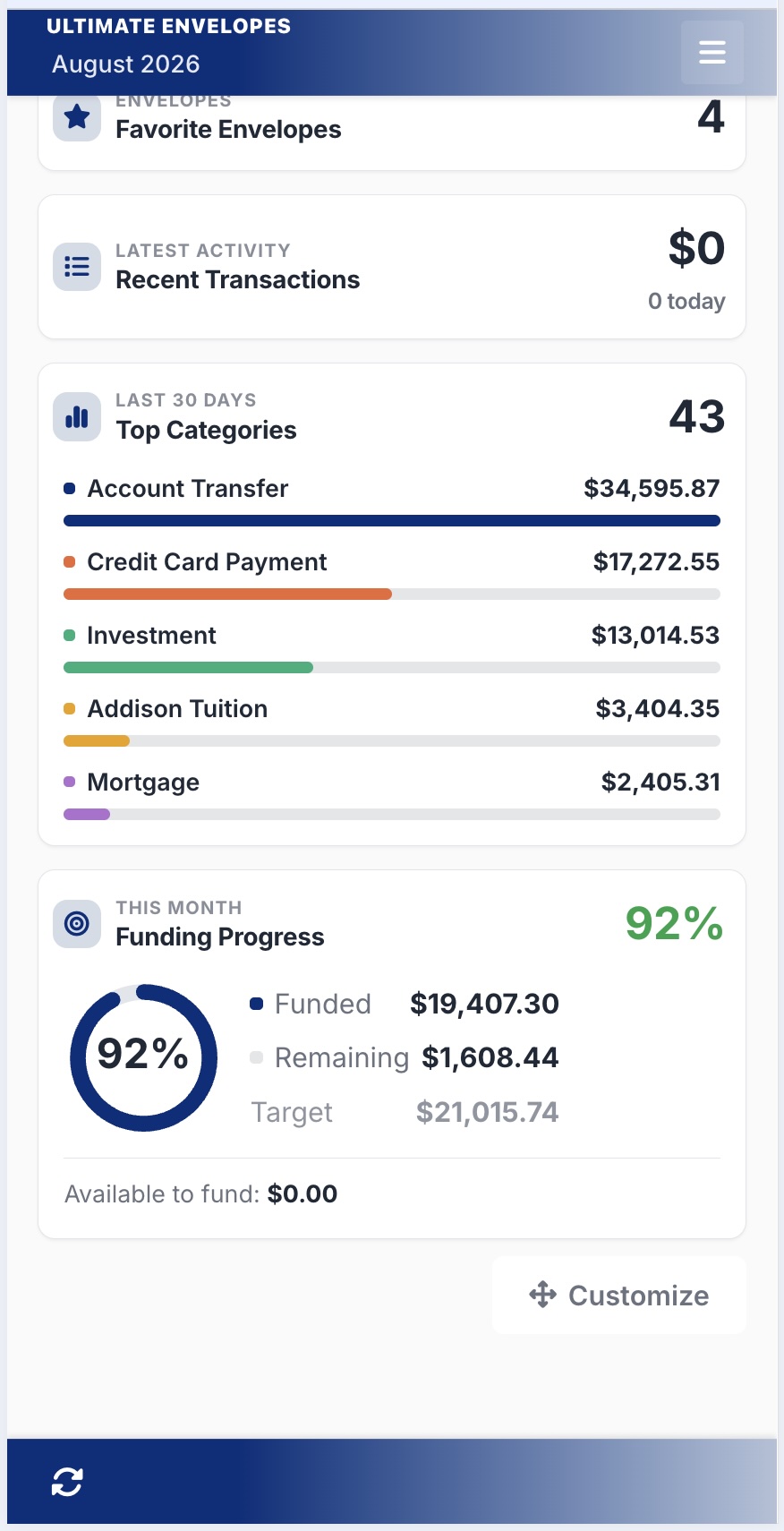
Get a quick pulse on your budget the moment you open the app. The Insights tab is a dashboard of cards: net worth, account balances, overspent envelopes, this month’s spending, funding progress, recent transactions, and more. Each card links straight to the details behind it.
The Insights Dashboard: your budget at a glance
Favorite envelopes and recent activity
How the Cards Work
The number in the header is the card’s headline: green when things look good, red when something needs a look.
Tap a card’s header to open or close it. Open, it shows the details; closed, just the headline. The app remembers which cards you left open.
Tap a row (an envelope, account, or transaction) to jump to its details on the matching tab.
Small cards always show just the headline. Make a card Medium or Large to see its details (see Arrange the Dashboard).
The Cards Updated
Tap a card below to see what it shows and what you can do with it.
Net Worth
Your assets minus your liabilities.
A trend line shows your net worth month by month. Move along it (or touch it on a phone) to see each month’s value; tap a month to show its Total, Assets, and Liabilities below the chart.
View full breakdown opens the net worth section on the Balances tab.
Account Balances
How many accounts you have, and the balances of the biggest ones.
Each account shows its balance and when it was last updated. Tap one to open its Account Insights.
Tap the gear to choose which accounts appear and how many.
The link at the bottom opens the Balances tab.
Envelope Health
How many expense envelopes are overspent (below $0.00) this month. A $0.00 balance doesn’t count.
Open, it lists the overspent envelopes, worst first, with the Total overage.
Tap an envelope to open its details, or View Envelopes to see them all on the Envelopes tab.
This Month's Spending
What you’ve spent so far this month.
A chip compares it with the same point last month (for example, 12% vs last month), green when you’re spending less and red when more.
Expenses, Transfers, and Income each show a count and total. Tap one to list its transactions, and tap a transaction to open it.
Funding Progress
How much of this month’s budget your envelopes have been funded, as a percentage.
A ring shows Funded, Remaining, and the Target (your total budget), plus how much is Available to fund.
Go to Payday opens the Payday tab to fund the rest.
Recent Transactions
The total and number of transactions for the period in the header.
Tap the period (today, this week, or this month) to switch between them. The list shows the same period, newest first.
Use the Expense, Income, and Transfer pills to choose which types are included. Each type has its own color, shown as a dot on each transaction.
Each transaction shows its envelope, amount, and date. Tap one to open it, or View all transactions to go to the Transactions tab.
Top Envelopes
Your five biggest envelopes for the period, with a bar for each.
Use the Expense, Income, and Transfer pills to choose what’s counted (Expense on its own to start). Expense counts money spent, Income money received, and Transfer money moved. Each type has its own color: orange for Expense, green for Income, purple for Transfer.
Tap the period under the count (this week, this month, this quarter, or this year) to change it.
Tap an envelope to open its details.
Uncategorized Transactions
The total and number of transactions that still need an envelope.
All caught up means there’s nothing left to categorize.
Favorite Envelopes
Your favorite envelopes and their balances, with a bar for each.
Tap an envelope to open its details.
To add one, open the envelope on the Envelopes tab and mark it Favorite while editing it.
Your choices on these cards (pills, periods, and accounts) are remembered by the browser you set them in.
Using a Tiller Foundation sheet? Insights works the same way, in Tiller’s terms: Envelope Health is Category Health, Top Envelopes is Top Categories, and overspent means a category’s Current Amount is below $0.00. Funding Progress and Favorite Envelopes don’t appear, since Tiller sheets have no funding or favorites.
Arrange the Dashboard New
Put the cards you use most at the top, make them the size you want, and hide the rest.
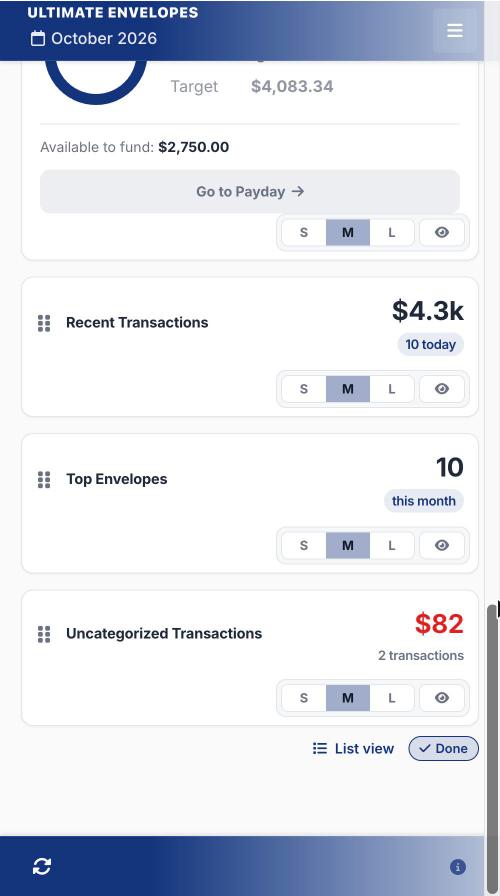
Tap Edit layout below the cards, at the bottom right. Each card shows a drag handle, an **S
M
L** size switch, and an eye.
Move a card: drag it to a new spot. On a phone, press and hold a moment before dragging, so scrolling doesn’t move cards by accident.
Change its size: tap S (Small), M (Medium), or L (Large). Small cards show just the headline.
Hide it: tap the eye. Hidden cards stay faded while you edit, so you can bring them back; once you’re done they’re gone from the dashboard.
Tap Done.
Edit layout: drag cards, pick a size, or hide them
Prefer a list? While editing, tap List view next to Done to reorder, resize, and hide the cards from a list instead.
Your layout is saved with your app, so it’s the same on every device.
Want the app to open somewhere else? Change the Starting Tab on the Settings tab.